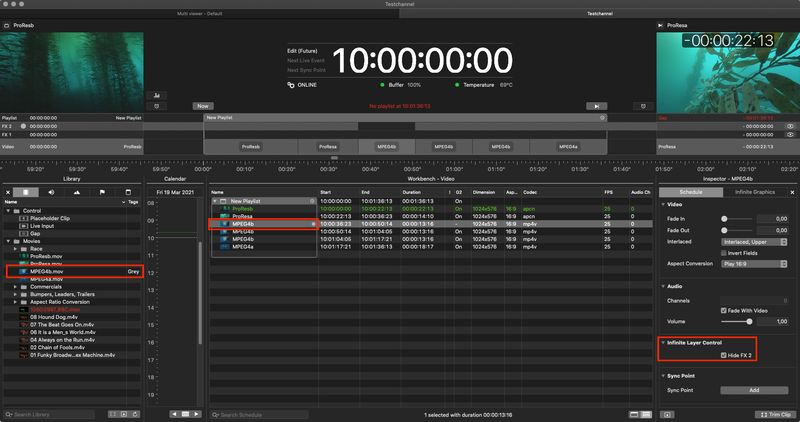
Infinite Graphics allow for showing a pre-selected graphics file on a FX Layer. Additionally you can automatically hide an infinite graphic based on Finder color tags, or based on your personal preference using the Inspector in Just Live or Just Play. This may be useful for commercial breaks, for example. videos or during a live event.
Setting an Infinite Graphic
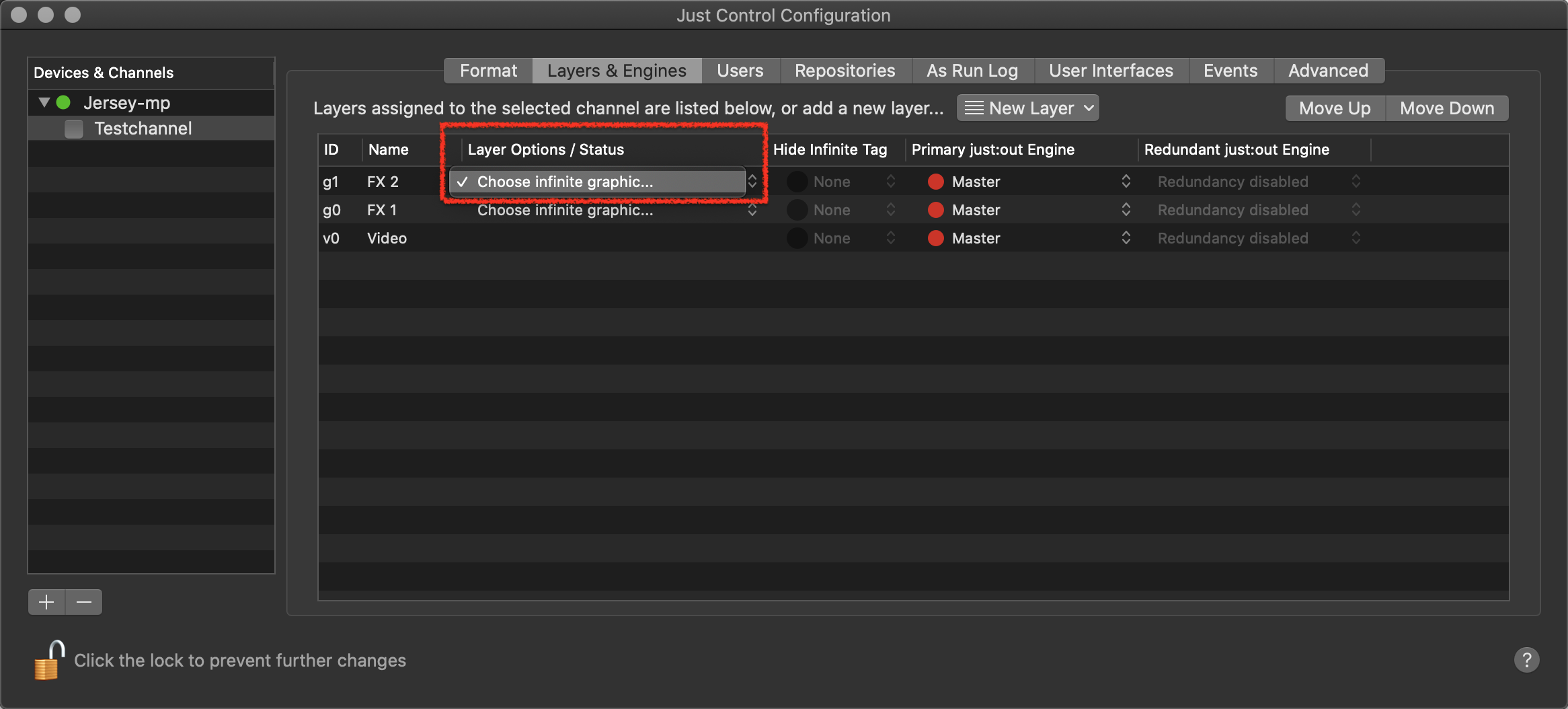
Stop the desired Channel by deactivating the checkbox in front of it. Stopping a Channel will also stop the Just Out engine and therefore the final output.
Select the Channel in the Devices & Channels list.
Click on the Layers & Engines tab.
In the Layer Options / Status column click Choose Infinite Graphic… for the desired layer.
Select the file you want to show on air all the time. This can be a QTZ, Composition Builder or image (JPEG or PNG) file.
Activate the checkbox in front of the Channel to start it again and to take over the changes you made.
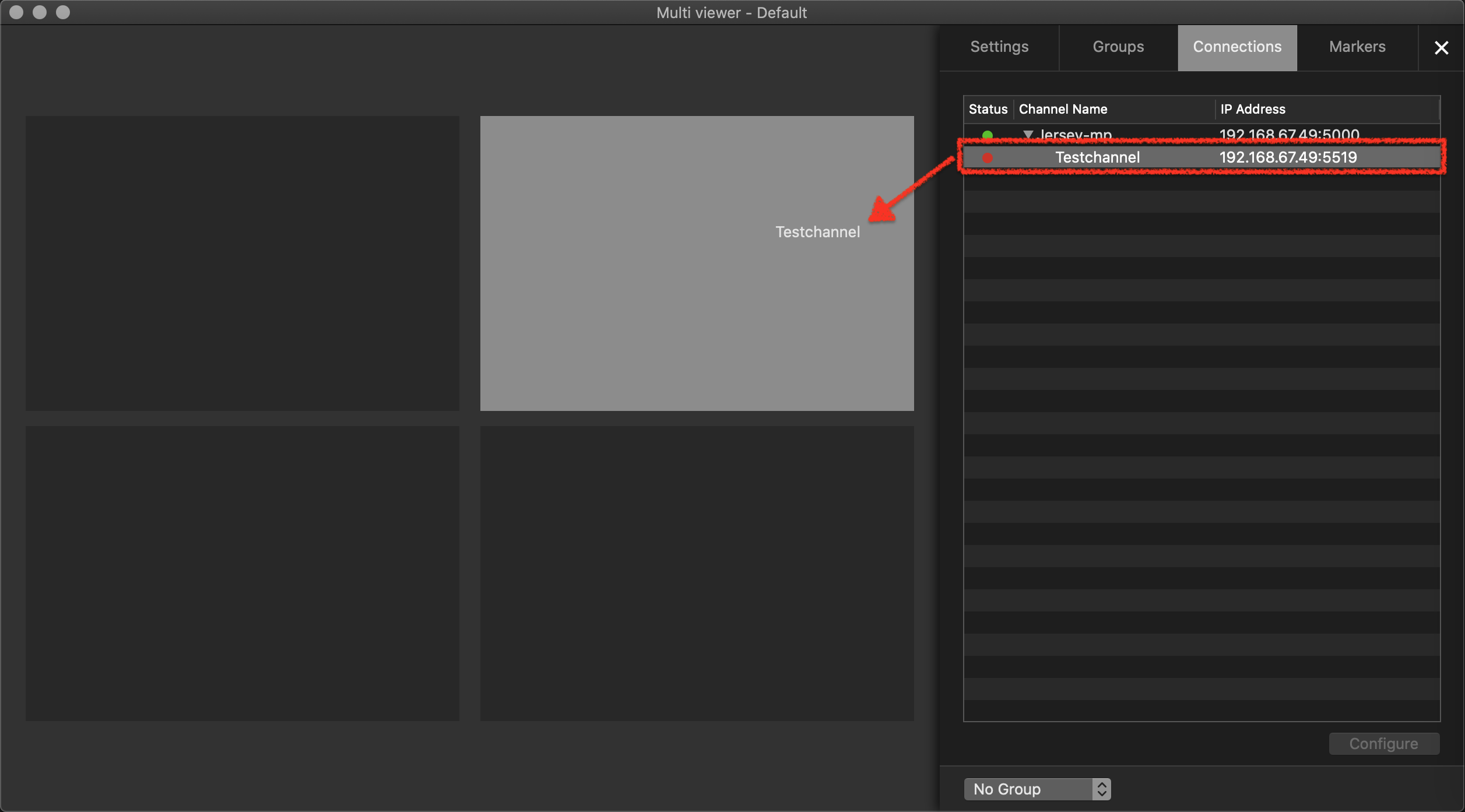
Close the configuration window and drag the Channel from the Connections tab to the Multi-viewer area.
A .qtz or .composition realtime Graphics template used as an infinite Graphics must contain ONE stop frame, otherwise the Graphics will go off air once the composition reaches its predefined composition end. Refer to the Composition Builder User Manual if you want to find out how to add a stop frame to your composition.
Removing an Infinite Graphic
Stop the desired Channel by deactivating the checkbox in front of it. Stopping a Channel will also stop the Just Out engine and therefore the final output.
Select the Channel in the Devices & Channels list.
Click on the Layers & Engines tab.
In the Layer Options / Status column click on the infinite graphic drop-down menu and select the command Choose infinite Graphic…
A file chooser dialog appears. Press the Cancel button.
The Infinite Graphic is now cleared.
Activate the checkbox in front of the Channel to start it again and to take over the changes you made.
Close the configuration window and drag the Channel from the Connections tab to the Multi-viewer area.
Hiding an Infinite Graphic using Color Tags
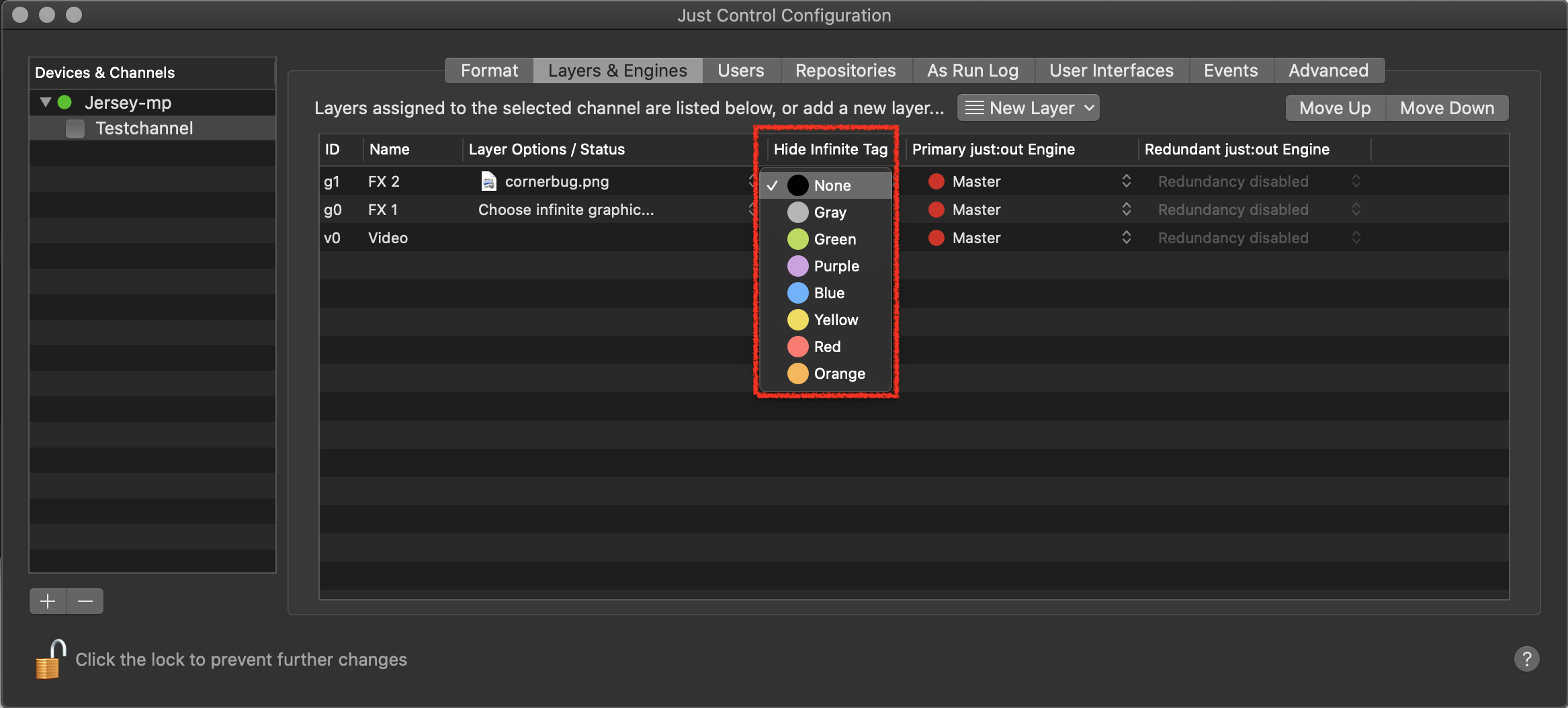
Once an Infinite Graphics has been defined, it is possible to select a colour to hide a specific Infinite Graphics during playout automatically. This means that every element with this colour tag in the rundown will have the Hide FX Layer checkbox in the Inspector activated.
Stop the desired Channel by deactivating the checkbox in front of it. Stopping a Channel will also stop the Just Out engine and therefore the final output.
Select the Channel in the Devices & Channels list.
Click on the Layers & Engines tab.
Select a Hide Infinite Tag colour in the Hide Infinite Tag column.
Activate the checkbox in front of the Channel to start it again and to take over the changes you made.
Close the configuration window and drag the Channel from the Connections tab to the Multi-viewer area.
Switch to the Finder and add colour tags to your desired files.
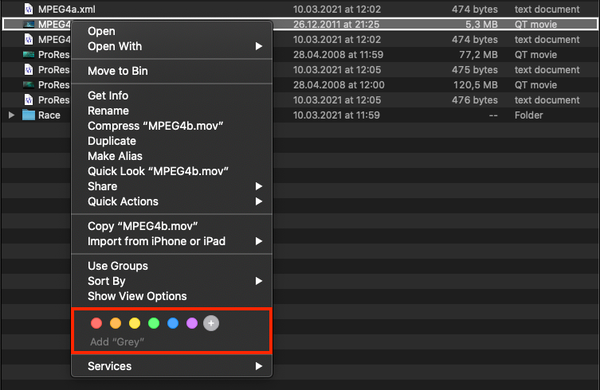
In the user interface the colour tag will be reflected in the Library and the Workbench. The Hide FX Layer checkbox will automatically be enabled for all files with the corresponding color tag.