System Requirements
Please read before using the Just In Mac Lite NDI application!
The Just In Mac Lite NDI 2026 application employs the latest official macOS NDI SDK to establish connections with available NDI® sources within a designated network. Given the inherent characteristics of NDI technology, as well as the variability in networking configurations and infrastructure, it is important to note that the performance and integrity of all recordings might vary. Please refer to the official NDI documentation for detailed information: https://docs.ndi.video/docs/docs/index .
Recommendations for Optimal Performance:
Utilize a dedicated network port exclusively for receiving NDI sources, ensuring segregation from other network traffic.
In a multichannel setup, it is highly advisable to employ a 10G network port/connection for enhanced performance.
We recommend the use of Netgear AV switches and the application of the appropriate NDI profile when incorporating Just In Mac Lite NDI 2026 into your workflow.
Compatibility Matrix for Just In Mac Lite NDI 2026.x
Important: the Just In Mac Lite NDI application is optimized exclusively for Apple silicon hardware (M1-M5) to provide you with the best performance and experience!
By fully transitioning to the Apple silicon platform, we ensure optimal performance, stability, and compatibility with the latest advancements.
If you are planning to deploy the Just In Mac Lite NDI 2026 application on qualified INTEL-based Macs (MacPro7,1 or Macmini8,1) please consider using version 2025.1!
Nevertheless, we will, of course, continue to support our customers who still have certified Intel-based Macs running qualified versions of Just In Mac Lite NDI.
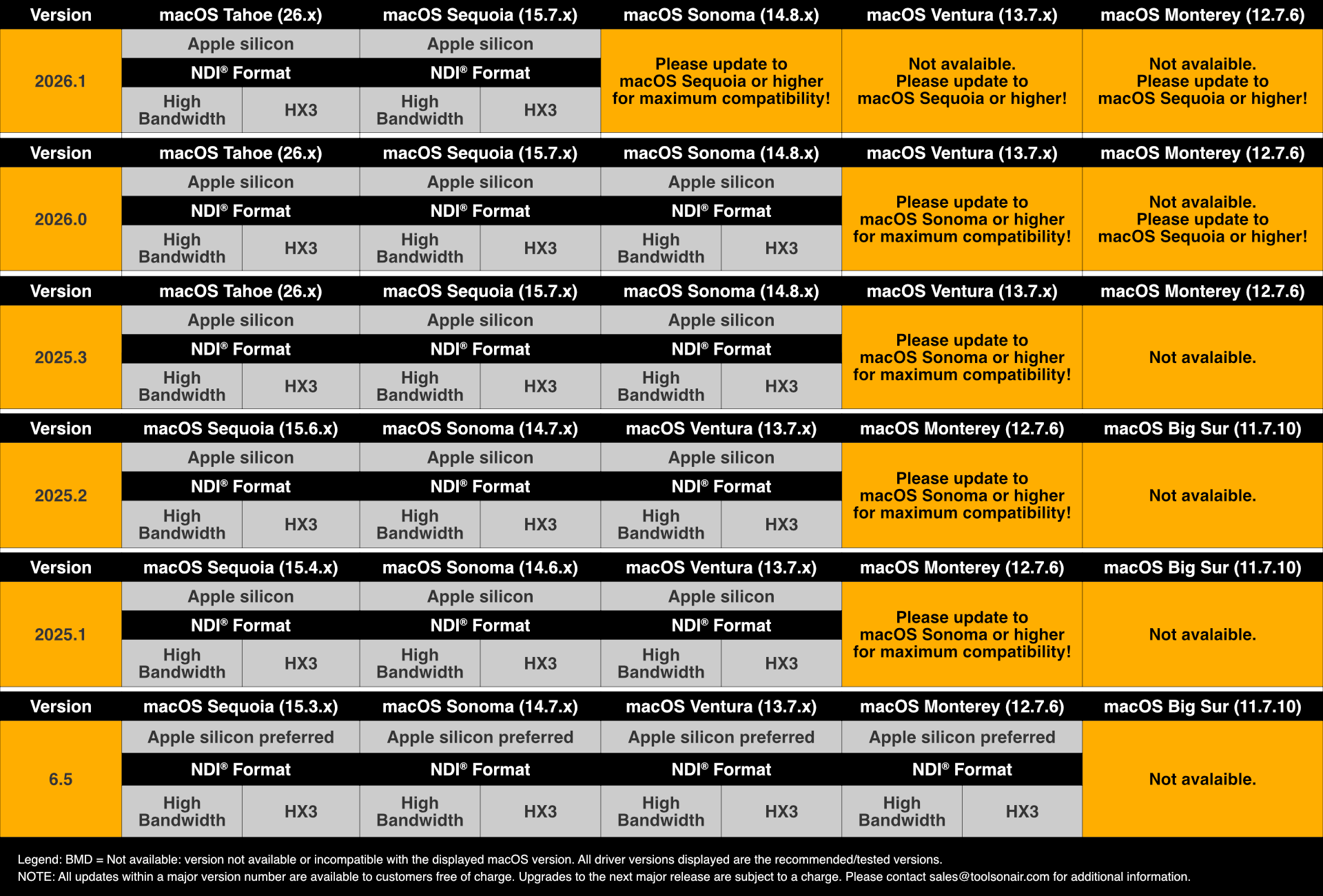
The specific hardware setup, third-party drivers, software, and operating systems should always be tested thoroughly with the free-of-charge trial software provided by ToolsOnAir before proceeding with the final installation.
Operating System
The supported macOS versions are (recommended macOS versions are displayed in Bold):
macOS 26.4.x (“Tahoe”) - recommended
macOS 15.7.x (“Sequoia”) - recommended
macOS 14.8.x (“Sonoma”) - please update to macOS Sequoia or higher!
Administrator account required for installation, configuration and to collect logs.
Date and Time Format
Please verify that your macOS Date & Time settings are compatible with the Gregorian Calendar format (Gregorian date formats include the following: ddmonyy, ddmonyyyy, mm/dd/yy, or mm/dd/yyyy). Using the Gregorian calendar ensures consistency and accuracy in the Date header, avoiding misinterpretation, synchronisation and activation errors. This is crucial for the Schedule mode to fetch the correct Start/Stop Date and Time information.
Memory/RAM
When running the Just In Mac Lite NDI 2026 application, we recommend using an Apple silicon (M1-M5) machine equipped with at least 16 GB of memory.
Mac models and macOS versions supported by Just In Mac Lite NDI 2026.x
NOTE: Version 2026 runs exclusively on Apple silicon hardware. If you plan to deploy Just In Mac Lite NDI on INTEL-based Macs (MacPro7,1 or Macmini8,1) please consider using version 2025.1 instead!
The Apple silicon based models listed below are the ones regularly tested in our labs. If your computer does not appear in the list below, and it is an Apple silicon computer, you can assume that the software will work perfectly. Nevertheless, we recommend that you contact us if you are in any doubt so that we can check your configuration together.
Mac Model (Apple silicon M1) | Model Identifier | macOS*/** |
Mac Studio M1 Max | Mac13,1 | 15.7.x, 26.6.x |
Mac Studio M1 Ultra | Mac13,2 | 15.7.x, 26.6.x |
Mac mini (M1, 2020) | Macmini9,1 | 15.7.x, 26.6.x |
Mac Model (Apple silicon M2) | Model Identifier | macOS*/** |
Mac Pro (2023) - EOL/EOS! | Mac14,8 | 15.7.x, 26.6.x |
Mac Studio M2 Max | Mac14,13 | 15.7.x, 26.6.x |
Mac Studio M2 Ultra | Mac14,14 | 15.7.x, 26.6.x |
Mac mini (M2, 2023) | Mac14,3 | 15.7.x, 26.6.x |
Mac mini (M2 Pro, 2023) | Mac14,12 | 15.7.x, 26.6.x |
MacBook Air (13”, M2, 2022)** | Mac14,2 | 15.7.x, 26.6.x |
MacBook Air (15”, M2, 2023)** | Mac14,15 | 15.7.x, 26.6.x |
MacBook Pro (13”, M2, 2022)** | Mac14,7 | 15.7.x, 26.6.x |
MacBook Pro (14”, M2 Pro, 2023)** | Mac14,9 | 15.7.x, 26.6.x |
MacBook Pro (14”, M2 Max, 2023)** | Mac14,5 | 15.7.x, 26.6.x |
MacBook Pro (16”, M2 Pro, 2023)** | Mac14,10 | 15.7.x, 26.6.x |
MacBook Pro (16”, M2 Max, 2023)** | Mac14,6 | 15.7.x, 26.6.x |
Mac Model (Apple silicon M3) | Model Identifier | macOS*/** |
Mac Studio M3 Ultra** | Mac15,14 | 15.7.x, 26.6.x |
iMac (24”, M3, 2-ports, 2023) | Mac15,4 | 15.7.x, 26.6.x |
iMac (24”, M3, 4-ports, 2023) | Mac15,5 | 15.7.x, 26.6.x |
MacBook Pro (14”, M3, 2023)** | Mac15,3 | 15.7.x, 26.6.x |
MacBook Pro (14”, M3 Pro, 2023)** | Mac15,6 | 15.7.x, 26.6.x |
MacBook Pro (14”, M3 Max, 2023)** | Mac15,10, Mac15,8 | 15.7.x, 26.6.x |
MacBook Pro (16”, M3 Pro, 2023)** | Mac15,7 | 15.7.x, 26.6.x |
MacBook Pro (16”, M3 Max, 2023)** | Mac15,11, Mac15,9 | 15.7.x, 26.6.x |
Mac Model (Apple silicon M4) | Model Identifier | macOS*/** |
Mac Studio M4 Max** | Mac16,9 | 15.7.x, 26.6.x |
Mac mini (M4 Pro, 2024) | Mac16,11 | 15.7.x, 26.6.x |
iMac (24”, M4, 2-ports, 2024) | Mac16,2 | 15.7.x, 26.6.x |
iMac (24”, M4, 4-ports, 2024) | Mac16,3 | 15.7.x, 26.6.x |
MacBook Pro (14”, M4, 2024) | Mac16,1 | 15.7.x, 26.6.x |
MacBook Pro (14”, M4 Pro, 2024) | Mac16,8 | 15.7.x, 26.6.x |
MacBook Pro (14”, M4 Max, 2024) | Mac16,6 | 15.7.x, 26.6.x |
MacBook Pro (16”, M4 Pro, 2024) | Mac16,7 | 15.7.x, 26.6.x |
MacBook Pro (16”, M4 Max, 2024) | Mac16,5 | 15.7.x, 26.6.x |
Mac Model (Apple silicon M5) | Model Identifier | macOS*/** |
MacBook Pro (14”, M5, 2025) | Mac17,2 | 26.6.x |
MacBook Pro (14”, M5 Pro/Max, 2026) | Mac17,9, Mac17,7 | 26.6.x |
MacBook Pro (16”, M5 Pro/Max, 2026) | Mac17,8, Mac17,6 | 26.6.x |
*Legend: 15.7.x = macOS Sequoia, 26.6.x = macOS Tahoe.
IMPORTANT: macOS Sonoma= please update to macOS Sequoia or macOS Tahoe!
NOTE: Please verify that the available Media Engines in all Apple silicon based models meet your recording requirements, before buying a Just In Mac Lite NDI 2026 license. You can test the full feature enabled Just In Mac Lite NDI 2026 application for free by downloading the trial version from the related solution page. The trial version will add a ToolsOnAir watermark to the recordings. By licensing Just In Mac Lite NDI 2026 the watermark will automatically be removed.
All supported Mac models: min. of 16 GB of RAM highly recommended!
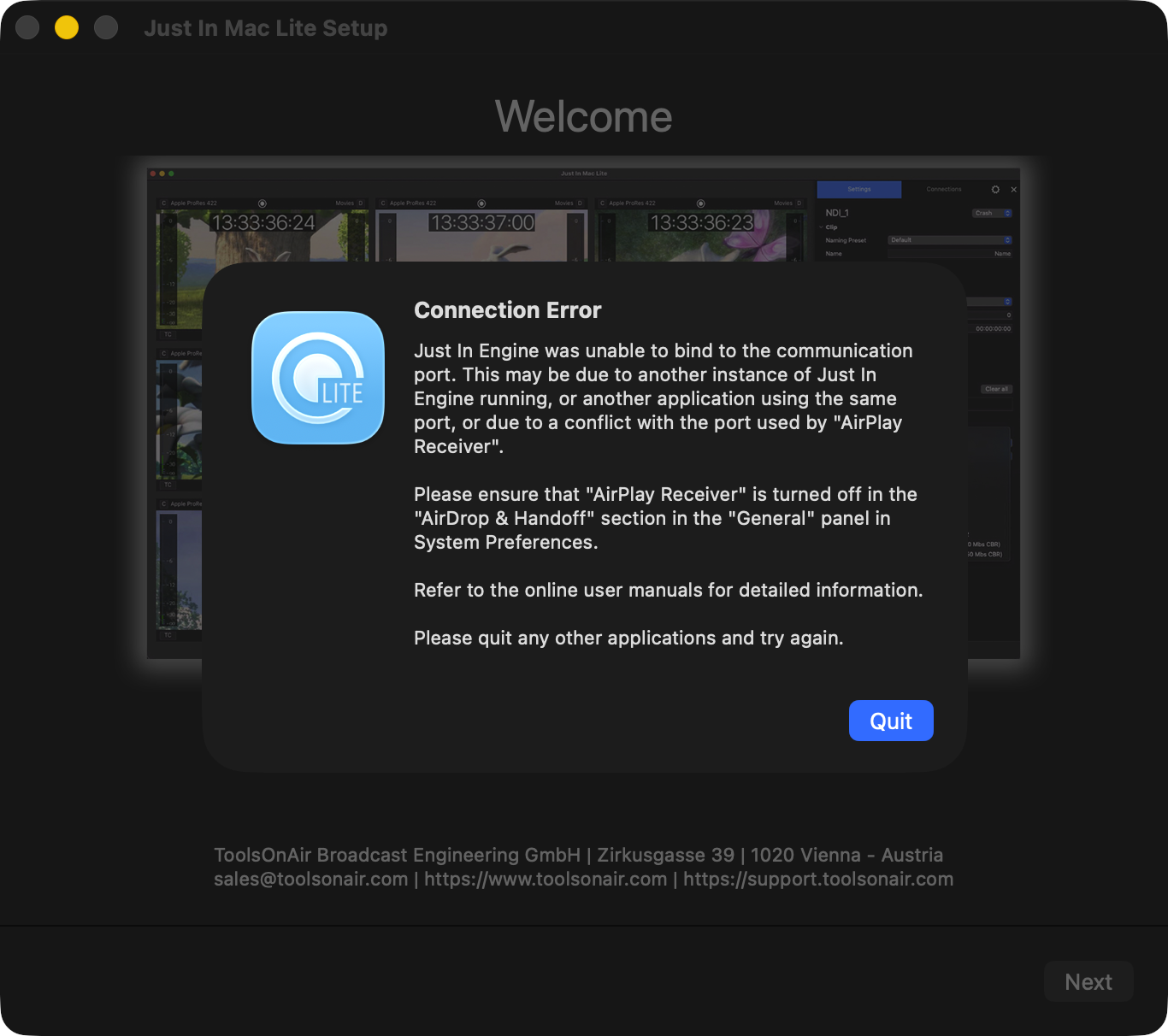
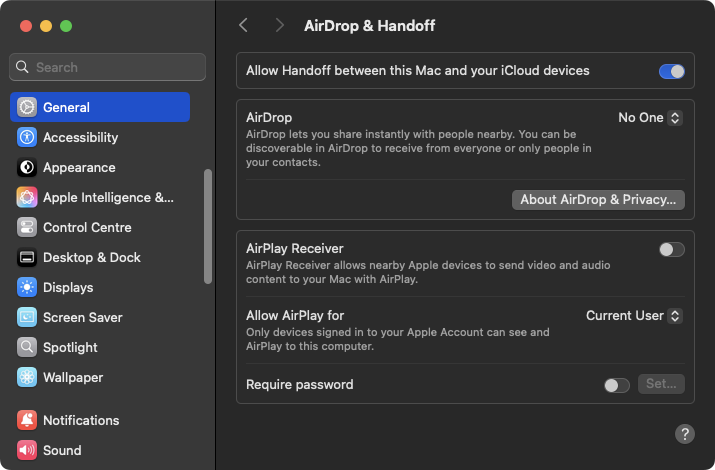
Disabling the AirPlay Receiver function
Go to “System Settings → General → Air Drop & Continuity” and in the AirPlay section, please toggle off the AirPlay Receiver option as this setting conflicts with the internal Just In Mac Lite engine port.
 |  |
Download
The latest version of the Just In Mac Lite NDI application is freely available for Download via the dedicated solution page.
Installation
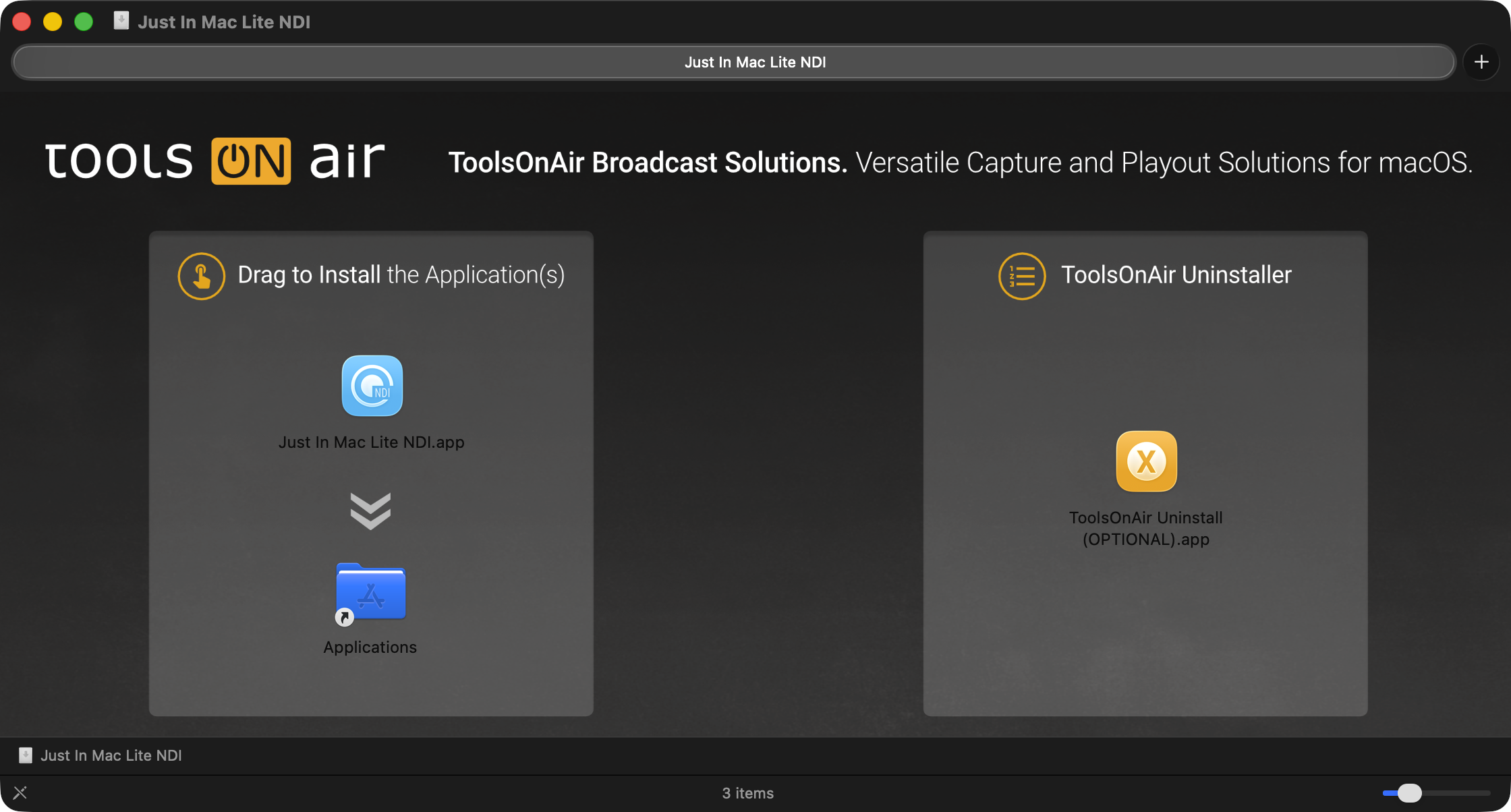
Extract the downloaded ZIP archive and open the disk image. The Just In Mac Lite NDI installation disk image (.dmg) will appear on your screen as shown below:

Installation of Apple Pro Video Formats
Please ensure to download and install the Apple Pro Video Formats from Apple’s website, as they provide support for the listed codecs (see screenshot below) used to capture files with Just In Mac Lite NDI 2026, to ensure compatibility with professional video workflows.


If this has been done previously, then no action is required. The Apple Pro Video Formats codecs can be found at: “/Library/Video/Professional Video Workflow Plug-Ins”.
Installation of the Just In Mac Lite NDI 2026 standalone application
Drag & Drop Just In Mac Lite NDI onto the “Applications” folder and, if desired, add the application to the Dock.
First Run Setup
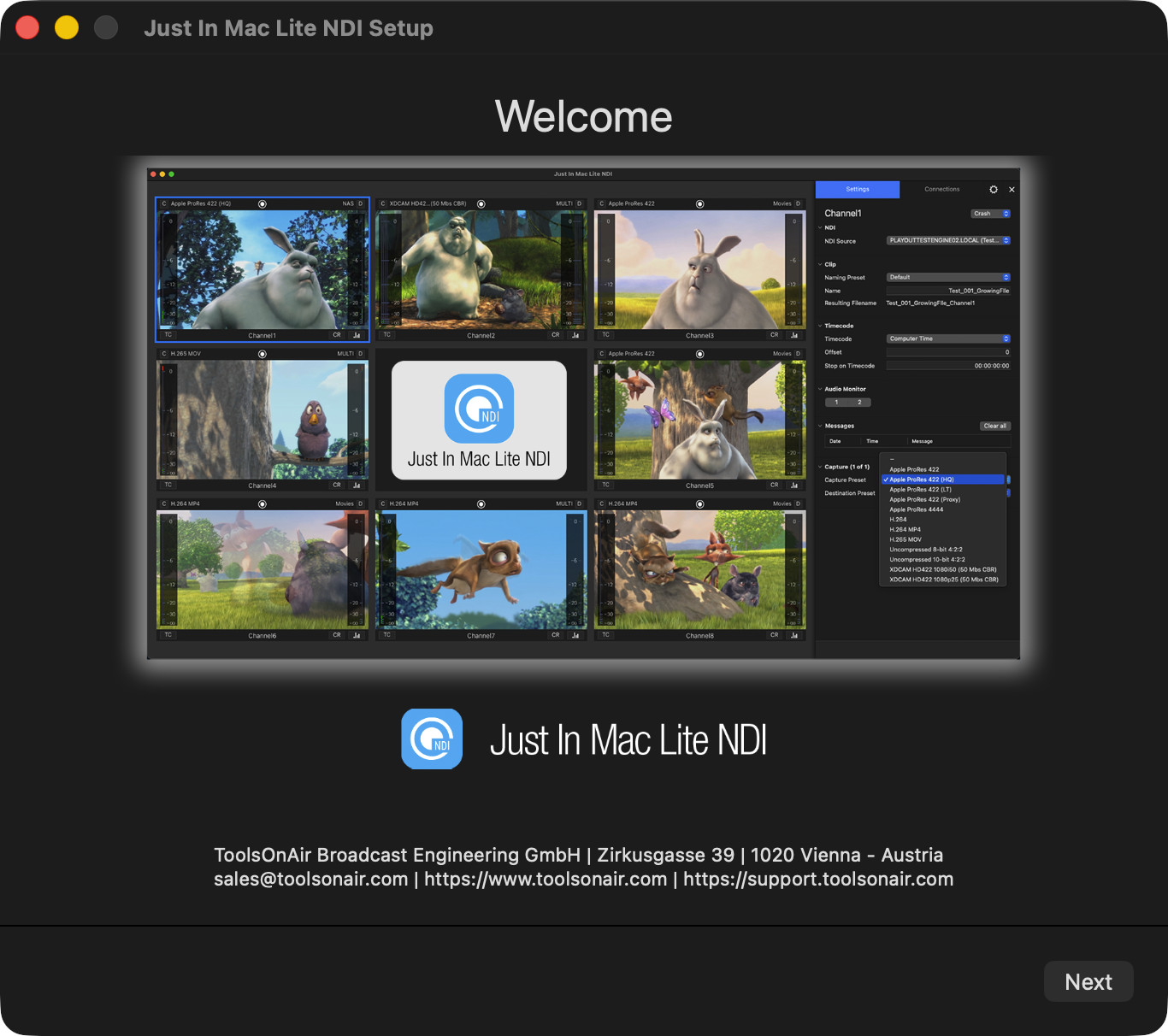
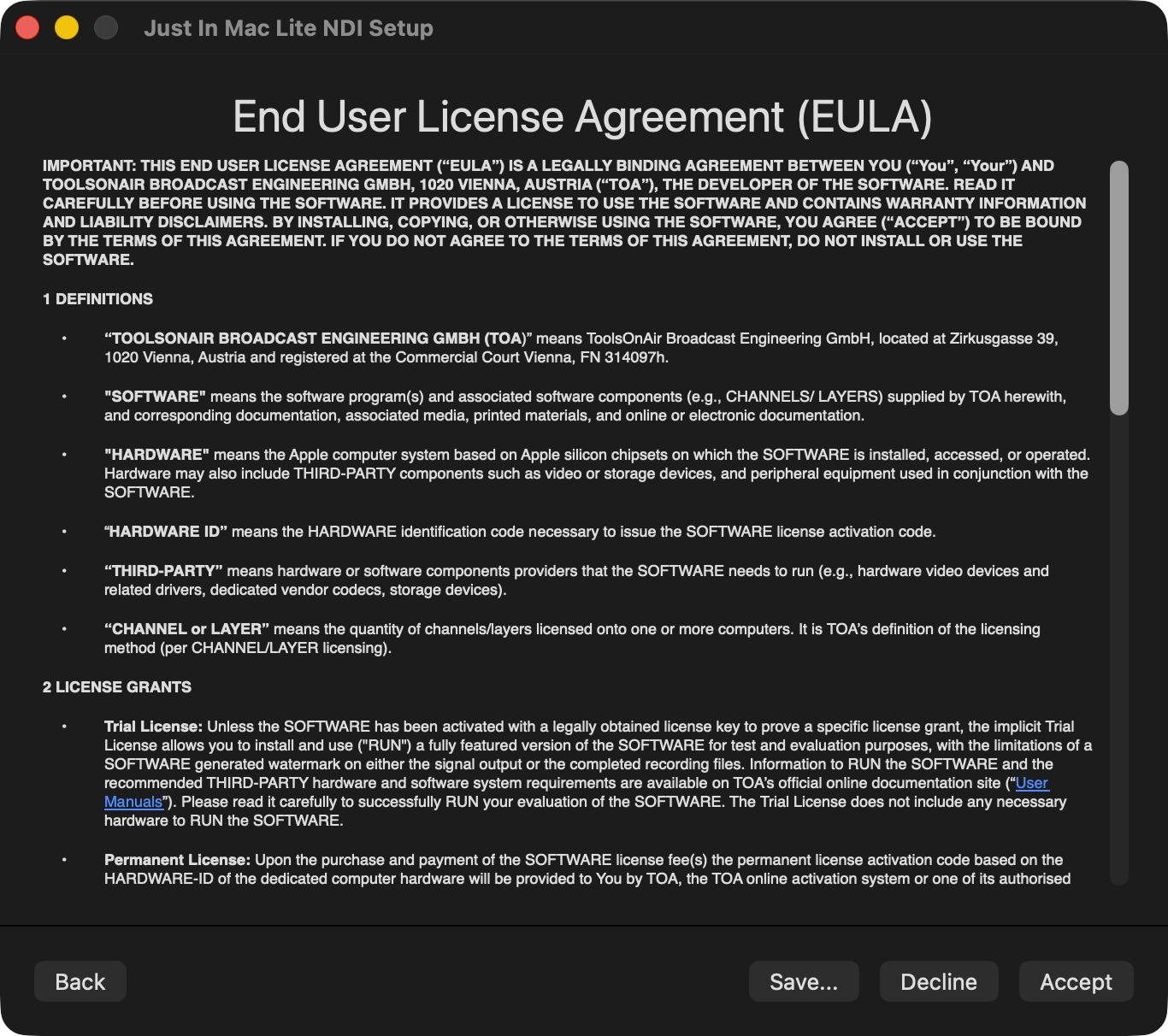
Start the Just In Mac Lite NDI applications, click “Next”, review/agree the related End User License Agreement (EULA) and click “Accept” to continue. Clicking on “Decline” will terminate the setup process.
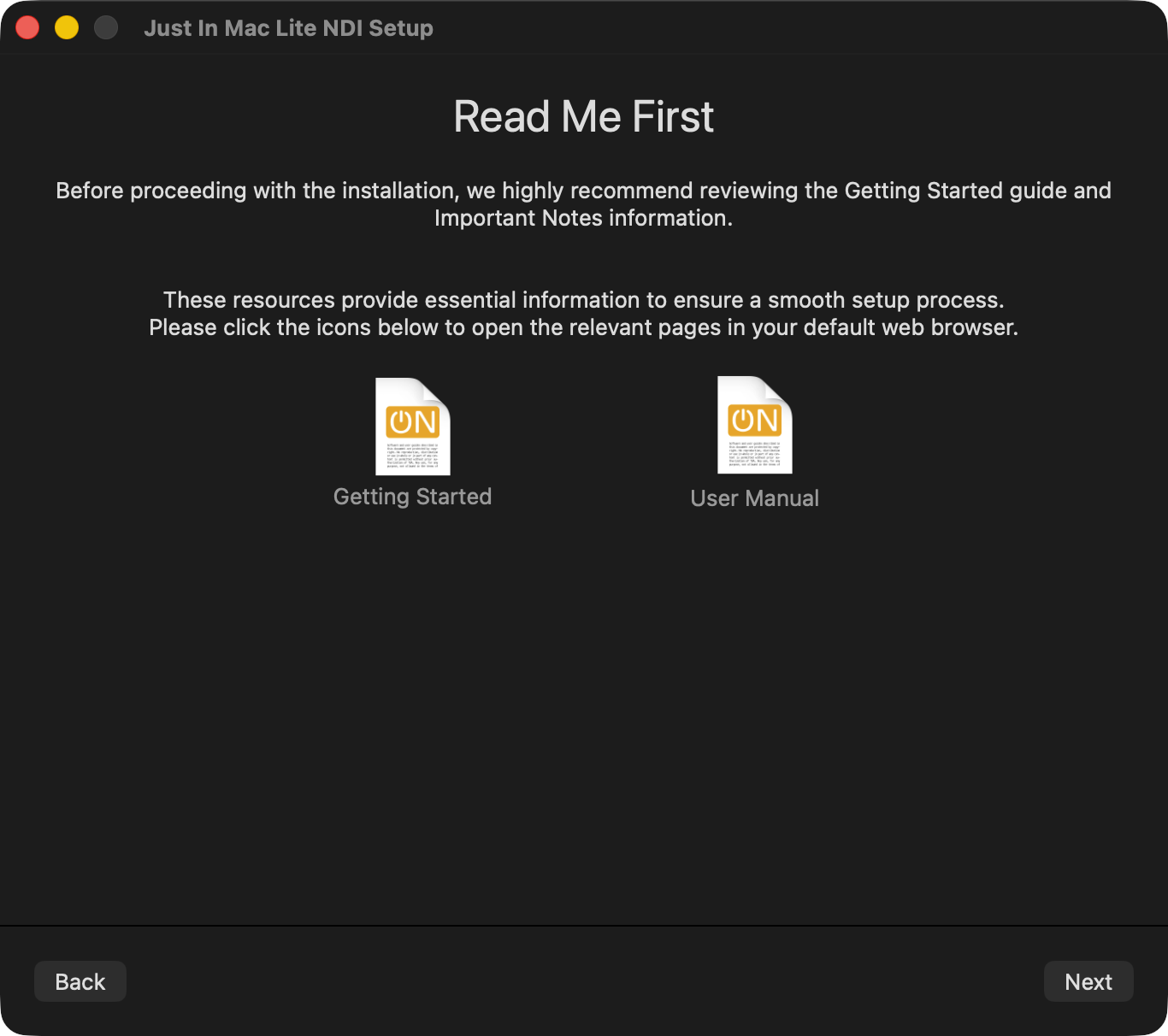 | On the “Read Me First” screen, you will find two dedicated links that will either open the “Just In Mac Lite NDI Getting Started” online manual (this page) or the Just In Mac Lite NDI 2026 manual accordingly. Click on “Next” to continue. |
As the Just In Mac Lite NDI application is designed to work with NDI sources, please select the desired video format (“Auto” is pre-selected to accelerate the setup) and proceed by clicking on the “Next” button.
 | Select the desired video format (“Auto” is pre-selected to accelerate the setup) and proceed by clicking on the “Next” button. |
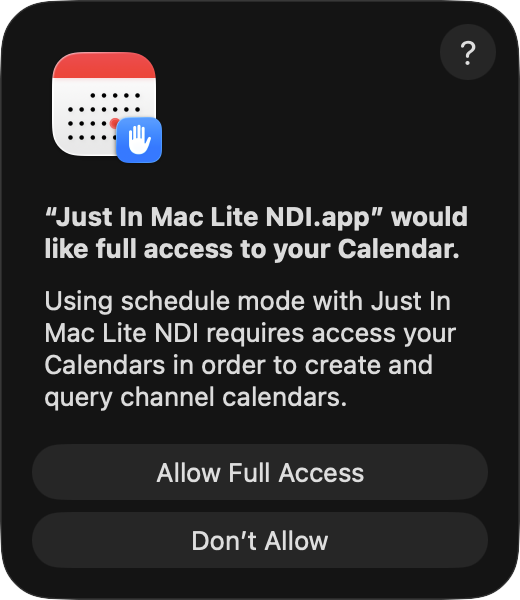 | The Just In Mac Lite NDI application checks for access to the macOS Calendar application (“Schedule Mode”). Press the “Allow Full Access” button to confirm. This can be changed later on if needed.  |
IMPORTANT: Allow “Local Network” Settings within macOS Sequoia (15.x.x) and macOS Tahoe (26.x.x)
The new Local Network security feature in macOS Sequoia (15.x.x), macOS Tahoe (26.x.x) and higher enhances privacy and control by allowing users to manage which apps can access their local network. This feature addresses concerns over unmonitored network access, providing an extra layer of security by ensuring that only trusted applications have access to local network resources, such as printers, file-sharing devices, and other computers. In macOS Sequoia, macOS Tahoe and higher, users are prompted when an application attempts to access the local network for the first time, enabling them to allow or deny access (“System Settings → Privacy & Security → Local Network”).
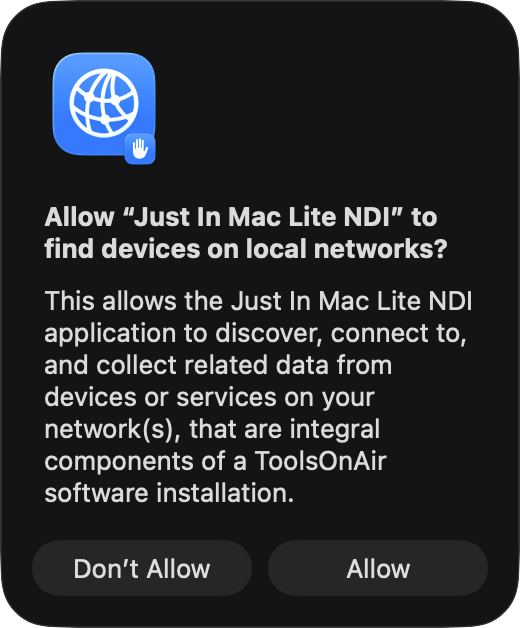 | When running the Just In Mac Lite NDI application for the first time on macOS Sequoia/macOS Tahoe, you will be asked to allow it to discover and connect to devices or other applications on your network. Please click on the “Allow” button to ensure the application to connect to devices or other application on your networks. |
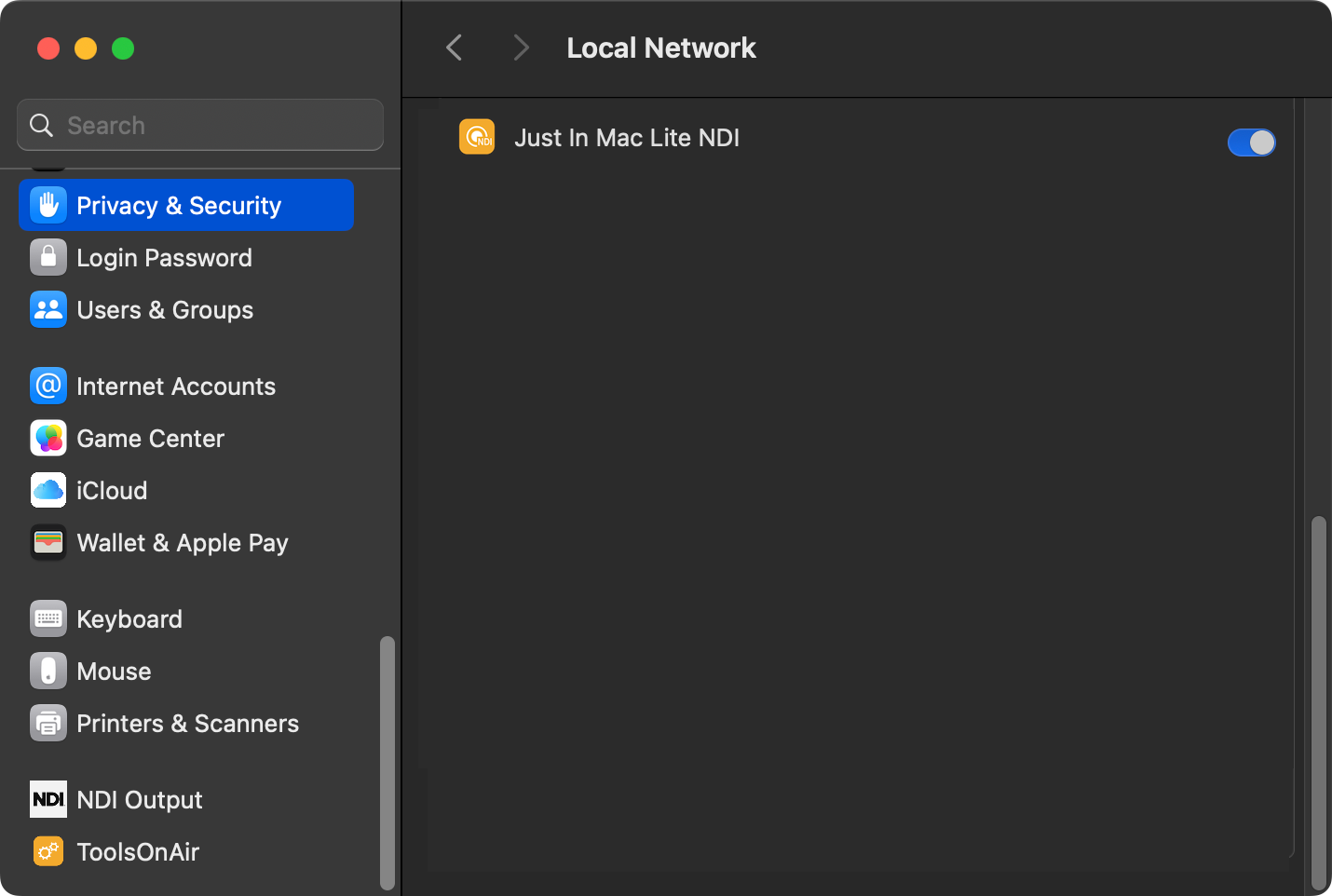 | To double-check the connection status, go to “System Settings → Privacy & Security → Local Network” and ensure that Just In Mac Lite NDI is enabled. |
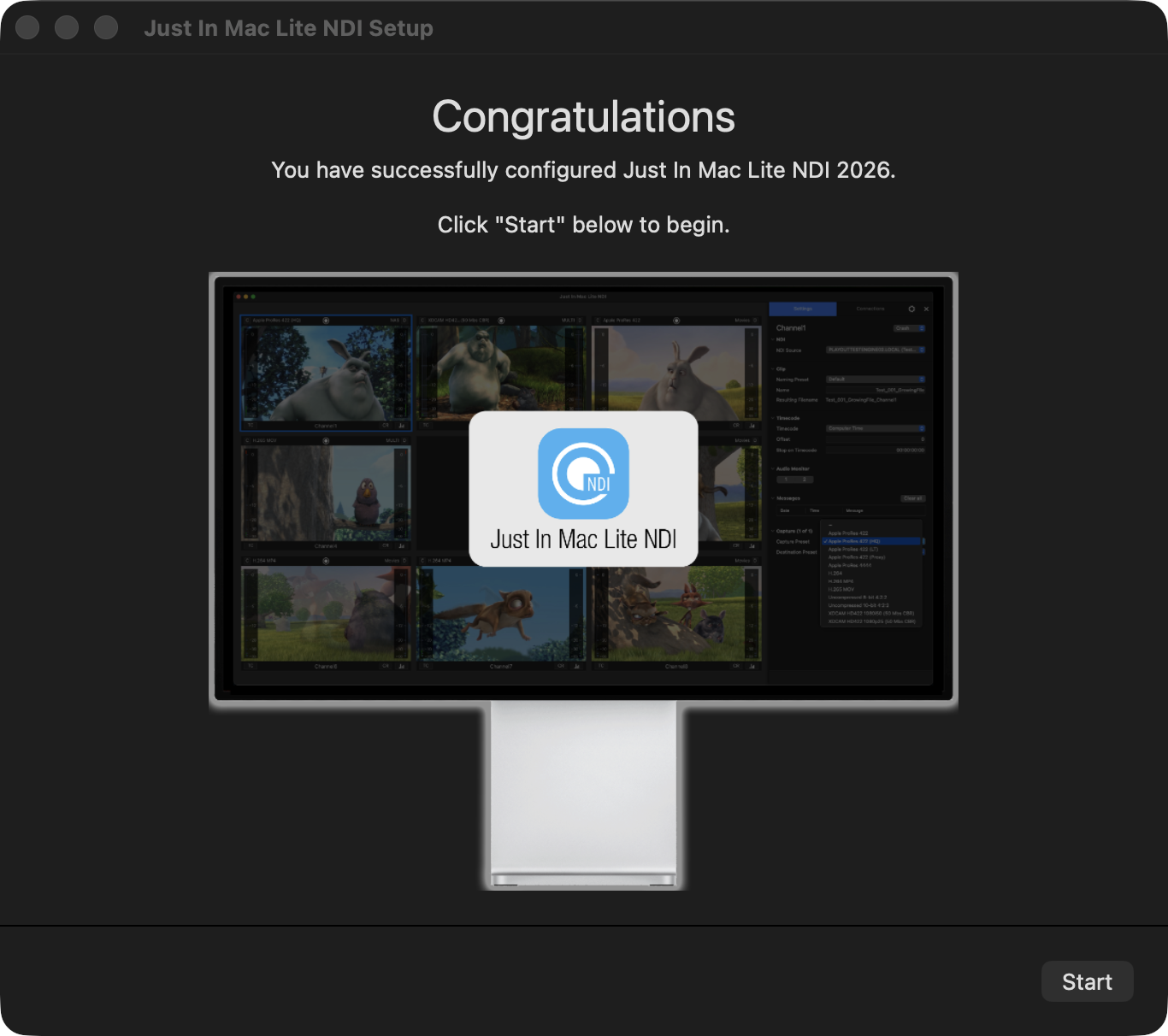
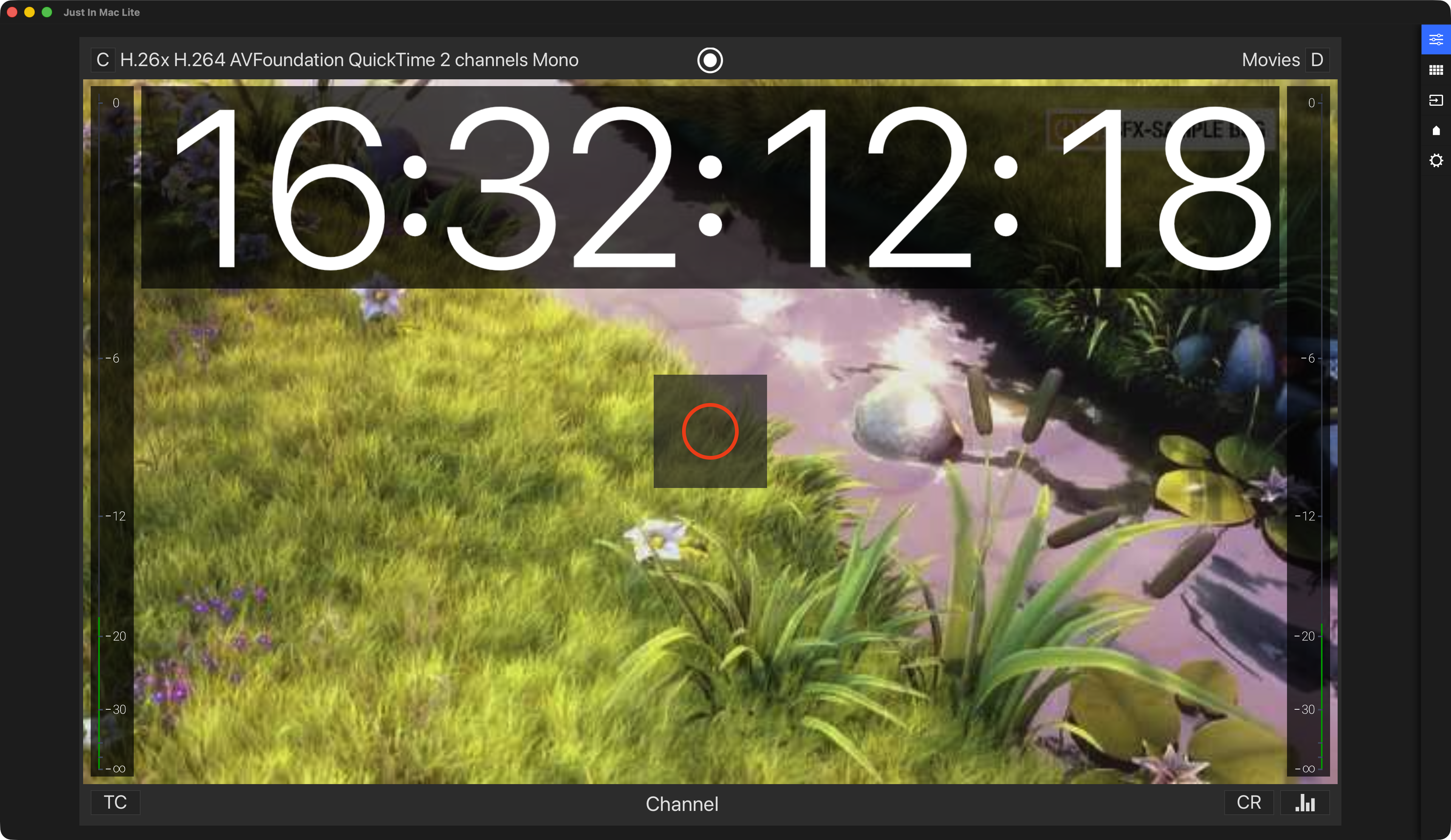
Congratulations! You have successfully configured the Just In Mac Lite NDI application. To complete the process, click on the “Start” button. The Just In Mac Lite NDI user interface will then appear as shown in the image below. Naming-, Capture- and Destination Presets will be automatically created and recordings can be started immediately. Files will be written to the macOS “Movies” folder.
 |  |
Your First Recording Session with Just In Mac Lite NDI 2026
The Just In Mac Lite NDI 2026 application user interface opens and will most likely not yet display any available NDI source automatically
To select an available NDI sources and apply it to your Channel(s), please select the wanted available source accordingly for each Channel. You will instantly see the preview in the related Channel preview.

Select the appropriate Capture- and Destination Preset and click on the “Red” recording button (Circle) to initiate your first recording.
Just In Mac Lite NDI 2026 provides a comprehensive list of predefined Capture Presets to alleviate the installation. All Capture Presets are set to 2 Mono/Stereo Audio Channels by default. If you need to record with more than two Mono audio channels, then please select the amount of required audio channels in the Capture Presets setting accordingly.
ToolsOnAir Uninstaller
Additionally, an improved Uninstaller application is available within the Just In Mac Lite NDI 2026 installation DMG file. Use this utility if you need to restart the configuration from scratch or to completely remove Just In Mac Lite NDI 2026 from your system.