
Before proceeding, you must stop the Channel by deactivating the checkbox. Stopping the channel will also stop the engine.
Each Channel has a certain output format (frame size, frame rate, and bit depth) in which the engine is "rendering" the final output.
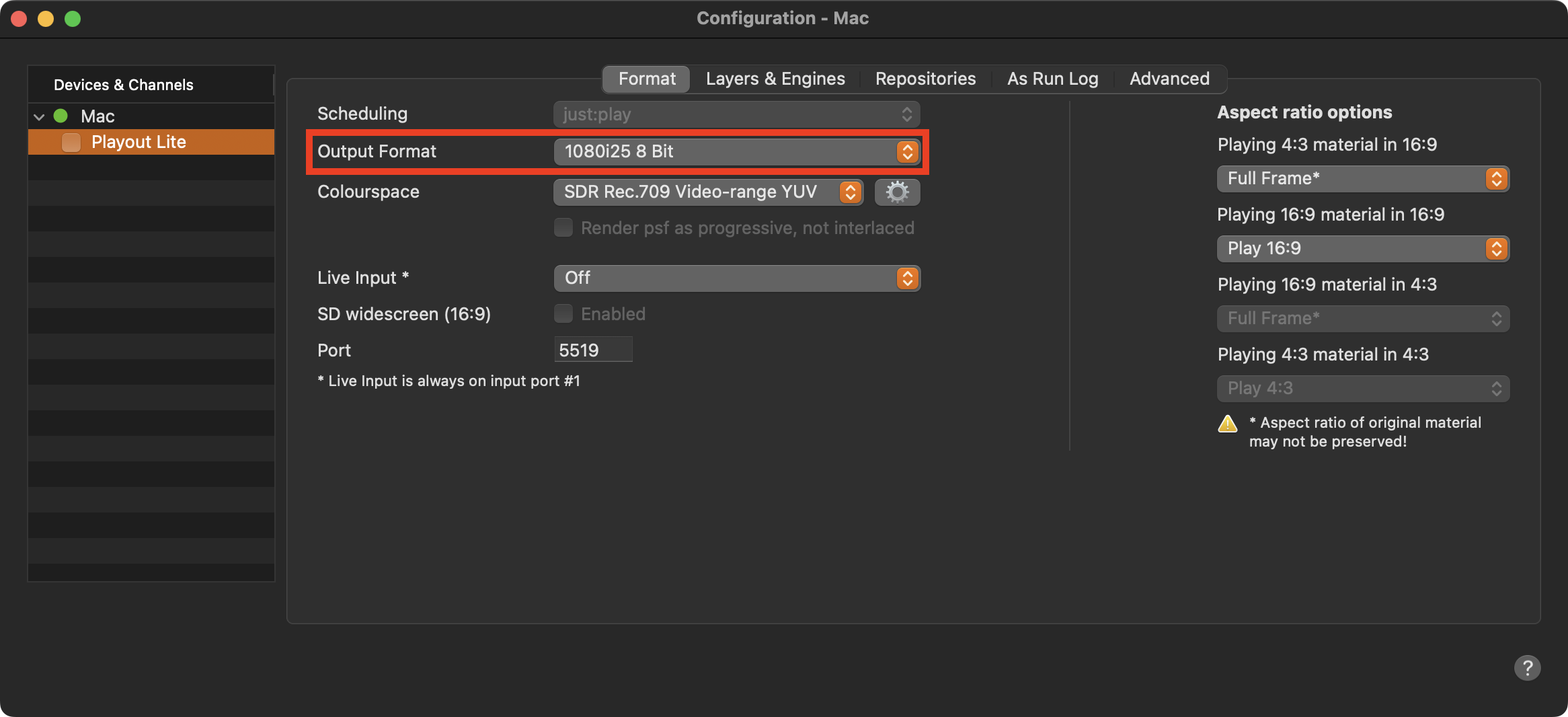
Stop the Channel by unchecking the checkbox in front of it. Stopping the Channel will also stop the playout engine and therefore the final output.
Select the Channel in the “Devices & Channels” list.
Click on the “Format” tab.
Select the desired output format in the “Output Format” drop-down menu.
Select 8 Bit for standard video playout and all outputs based on a streaming format.
Select 10-Bit for maximum quality and HDR playout (only available using Virtual/AJA/Blackmagic Design).
Select RGBA for Fill+Key playout
Activate the checkbox in front of the Channel to start it again and to take over the changes you just made.
Keep in mind, that using a live input, the incoming live signal must match the Channel's frame rate and interlaced/progressive setting, otherwise it will not be visible in the final output.