
Just Control Settings
You can access the Just Control Settings panel via the menu “Just Control → Settings…” (Command-,).
The “Reset Warning Alerts” button allows you to re-enable warnings if they have been previously turned off.
General, Multiviewer

Error Display: Defines if every Message like Errors and Warnings is shown on top of the On Air window (Viewer), or as a yellow triangle in the lower bar of the Multi Viewer (or in the Control Area of the dedicated user interface). In case “Icon” is selected, a click on the triangle will show the Message(s) and a control-click on the triangle will clear the triangle and all Messages.
Locking (only relevant for Just In ingest solutions)
Lock multi-viewer drag-and-drop: Activate this checkbox to avoid that viewer positions can be changed (by mistake) using drag and drop.
Automatically Log In Last User: Activate this checkbox to skip the user Login window and to log in with the last recent User and Multi viewer Layout in Just Control.
Mouse Behavior: Define which elements are shown in the Multi viewer interface when the mouse enters or exits a Viewer, or what is shown if a Viewer is shown in Full Screen mode.
Users
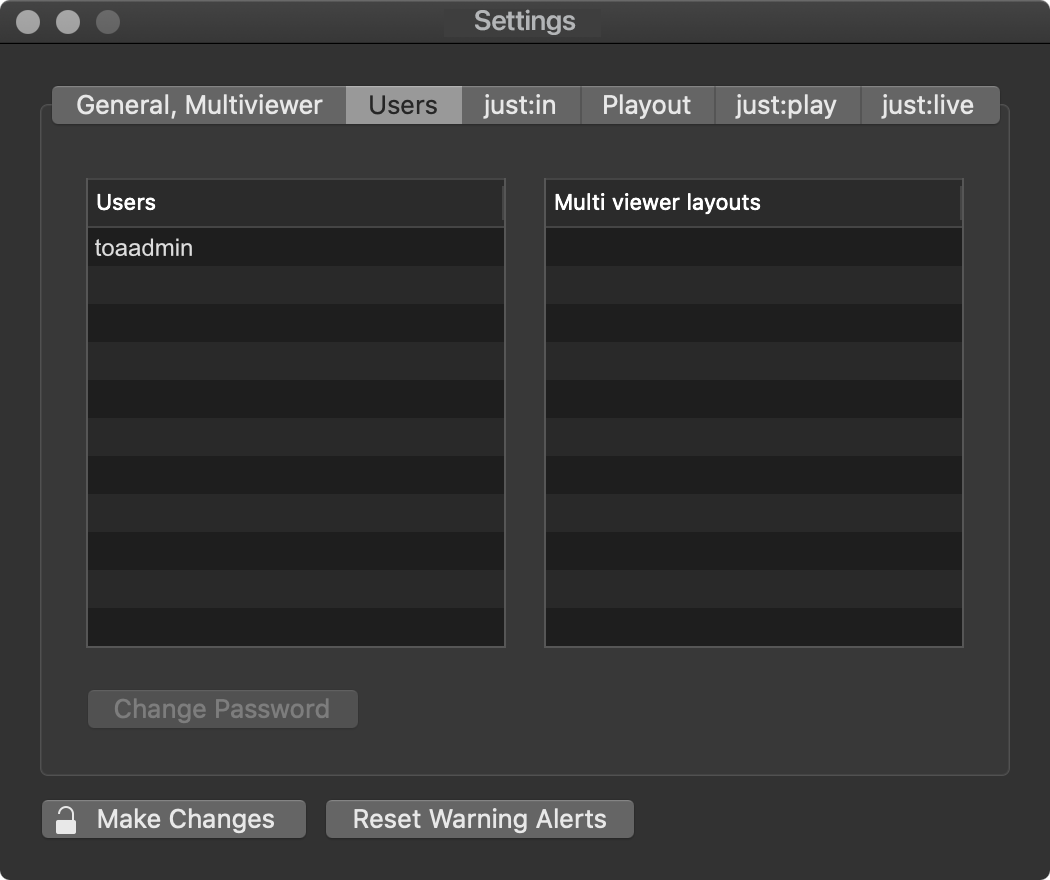
Users: Lists all Users who have been defined on this particular machine.
Multi viewer layouts: Shows all layouts that are available for the selected User.
Just In
(only relevant for Just In capture solutions)
Playout
Settings shown here apply to both Just Live and Just Play.
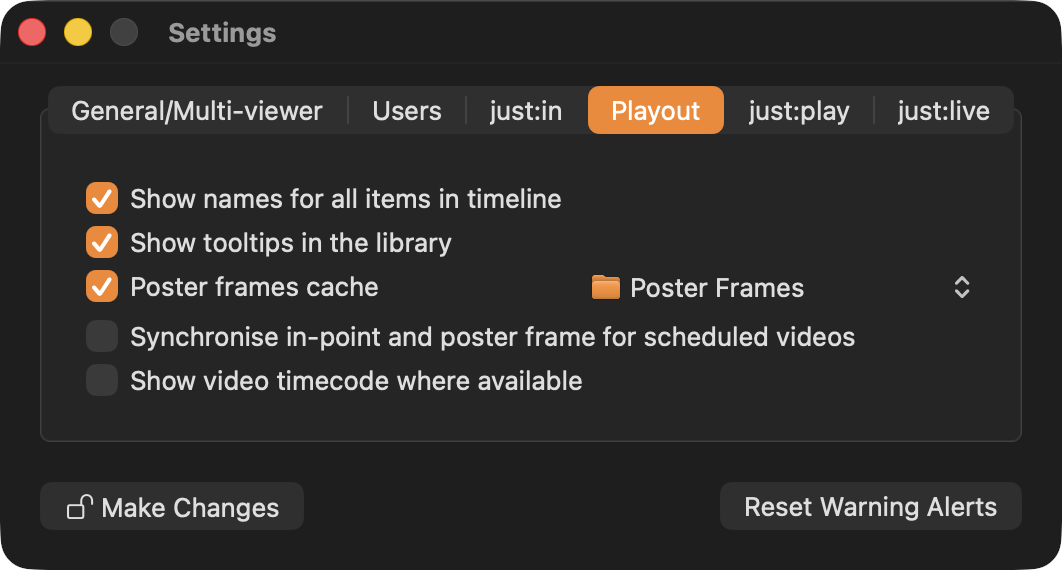
Show names for all items in timeline: Shows the names of all items in the Timeline as an overlay. If this option is deactivated, you can still hover over an item in the Timeline to see its name.
Show tooltips in the library: Deactivate this option to disable tooltips in the Library while moving the mouse pointer over entries. This option is enabled by default.
Poster frame cache: Defines the folder where poster frames will be saved. By default, poster frames are saved in the folder Poster Frames inside the Documents folder of the current User. This option is enabled by default. Disable it to suppress the creation of new poster frames in the Workbench.
Synchronise in-point and poster frame for scheduled videos: Changes the Posterframe automatically to the in-point defined a video.
Show video timecode where available: When selected and a video has an embedded TC track, the video trimmers (both for the Library and the Inspector) and the Inspector fields for in- and out-points will display timecode relative to the video asset’s timecode track. So, for example, if the in-point is set to one second after the start of the video, and the video has a timecode track with the first frame specified as “10:00:00:00”, then the in-point in the inspector and trimmers would be shown as “10:00:01:00”.
Just Play
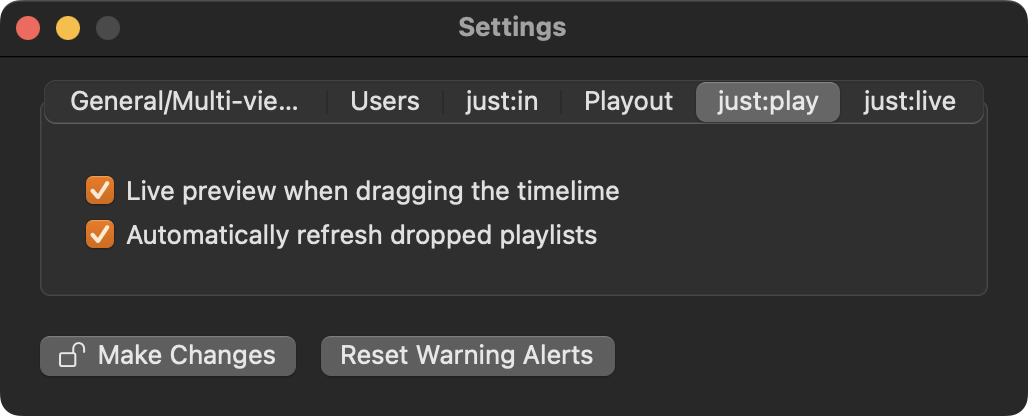
Live preview when dragging the timeline: When enabled, the On Air window updates while dragging the Timeline. Disable this option to improve the overall performance of the user interface.
Automatically refresh dropped playlists: Activating this feature automatically refreshes any Playlists when dragged from the Playlists tab (in the Library) and dropped onto either the Calendar or the Workbench view. This is useful, especially when you have older saved Playlists which do not include the necessary metadata to use the aspect ratio features, and you want to automatically include them when dropping Playlists into the schedule.
Depending on the size of the Playlist (i.e. the number of Video clips) the “Automatically refresh dropped Playlists” feature may slow down, dropping Playlists into a schedule, as each video clip in the Playlist has to be parsed and the necessary metadata to be extracted.
Just Live
Changing the “Hold time” here in the Preferences, does NOT change the hold time for videos which are already loaded into the Workbench/Timeline and only newly added videos will take over the new hold time. Select all videos in the Workbench/timeline and choose the Hold and Cue/Play Next” function again, to take over the new hold time.
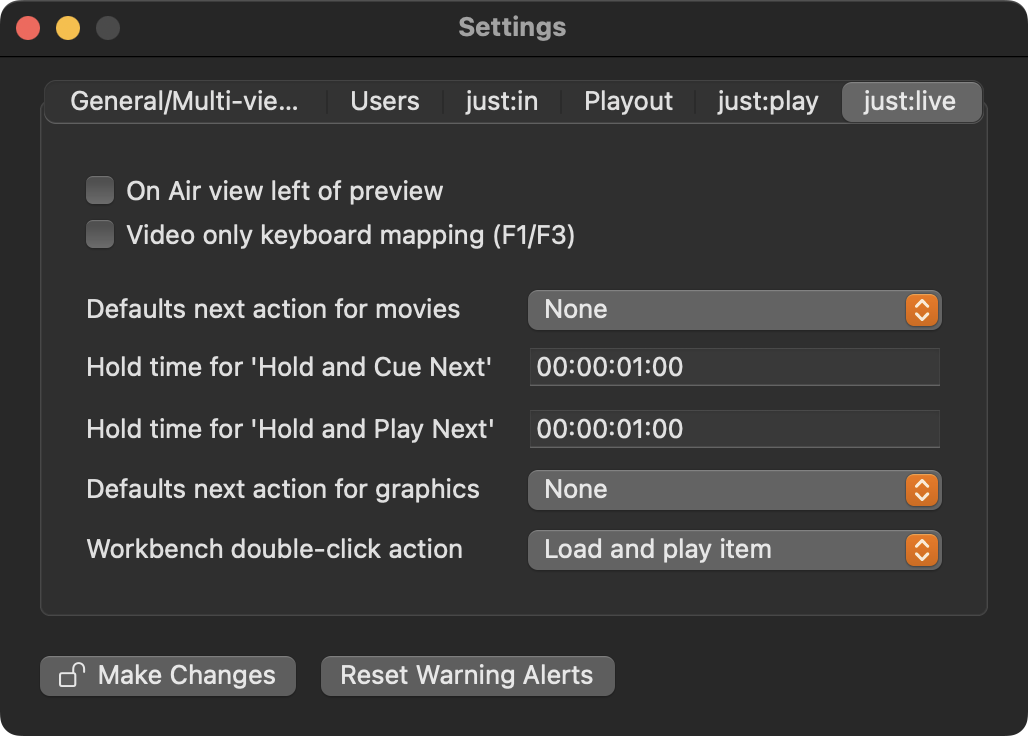
On Air view left of preview: When enabled, the On Air View is located to the left of the Preview View.
Video only keyboard mapping (F1/F3): Activate this checkbox to change the way the “F1/F3” keys should work. By default, pressing the “F1” key starts/stops the playout of the first Layer, the “F2” key starts/stops the playout of the second Layer, and so on. When the checkbox is activated, pressing the “F1” key starts the playout of the first Layer, and pressing the F3 key stops the playout. Pressing the “F1” key while an item is playing has no effect in this case.
Default next action for movies: This option allows you to predefine the default end action for every Video that is dropped into the Workbench. This preset can be overruled later for each Video element using the Inspector.
Hold time for 'Hold and Cue Next': This setting allows you to define how long the last frame of a Video will be "held" before the next clip will be cued.
Hold time for 'Hold and Play Next': This setting allows you to define how long the last frame of a Video will be "held" before the next clip will be played.
Default next action for Graphics: This option allows you to predefine the default end action for Graphic elements that are dropped into the Workbench. This preset can be overruled later for each Graphic element using the Inspector.
Workbench double-click action: This defines the action which is executed when double-clicking an item in the Workbench.