
General
The TCP Device enables specific control actions towards the Blackmagic Design Videohub video router.
Devices
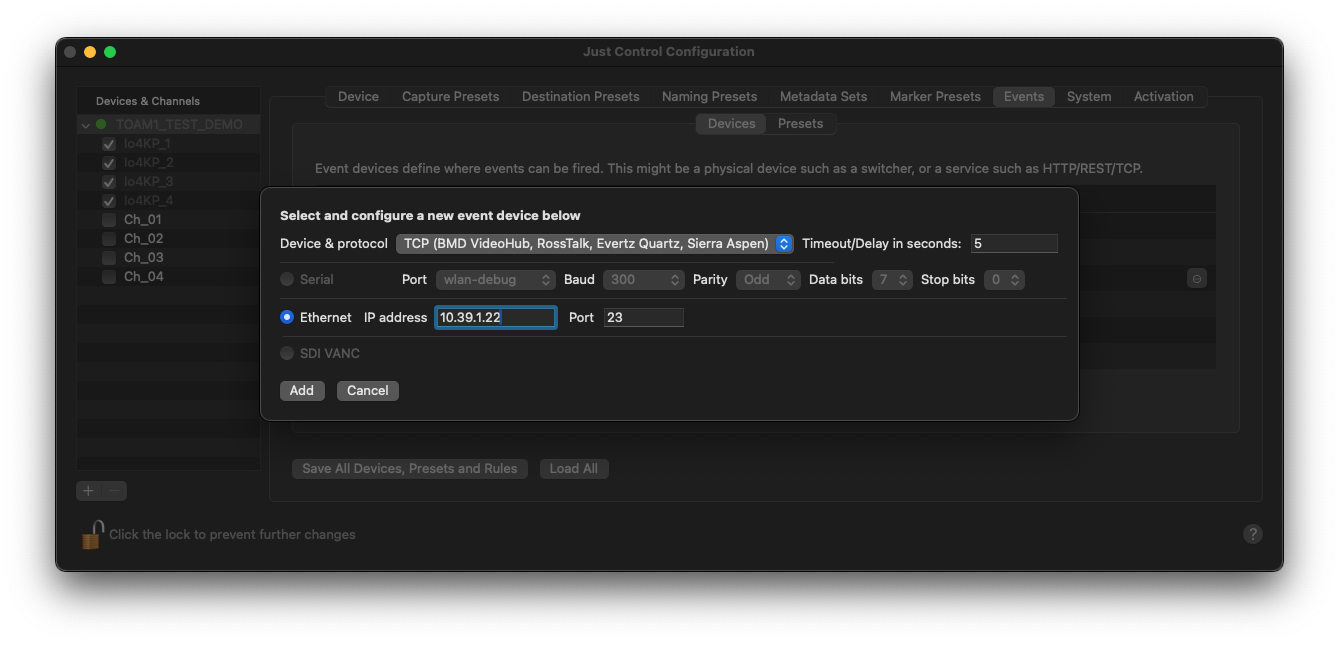
Click on the “Add” button to select the “TCP (BMD VideoHub, RossTalk, Evertz Quartz, Sierra Aspen)” Device from the “Device & protocol” list, enter the IP address of the Blackmagic Design Videohub video router, and press the “Add…” button to create the Device.
A new window appears, where further configuration is required. First, choose “Blackmagic Design Videohub” as Preset and press the Plus (“+”) button next to it.
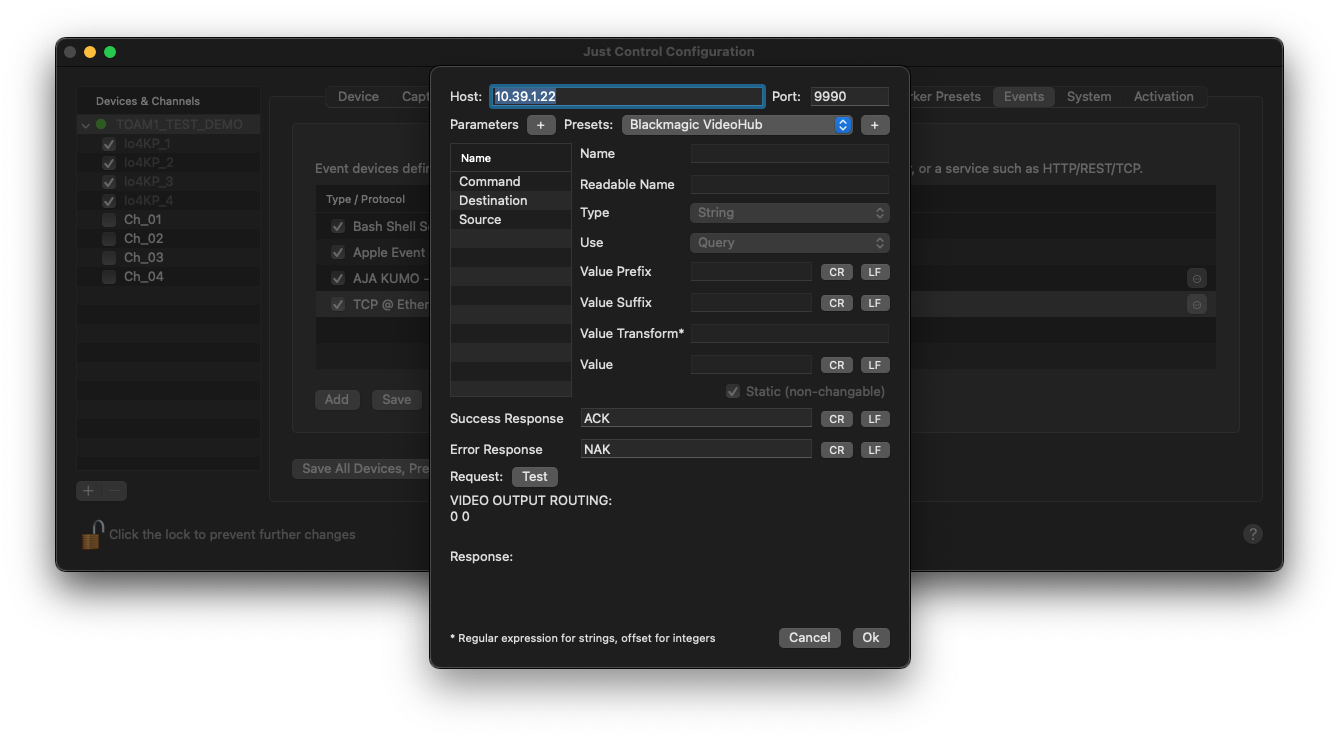
If the Blackmagic Design Videohub video router can be reached over the network, everything should be good, but to make sure, use the “Test” button to check the connection first.
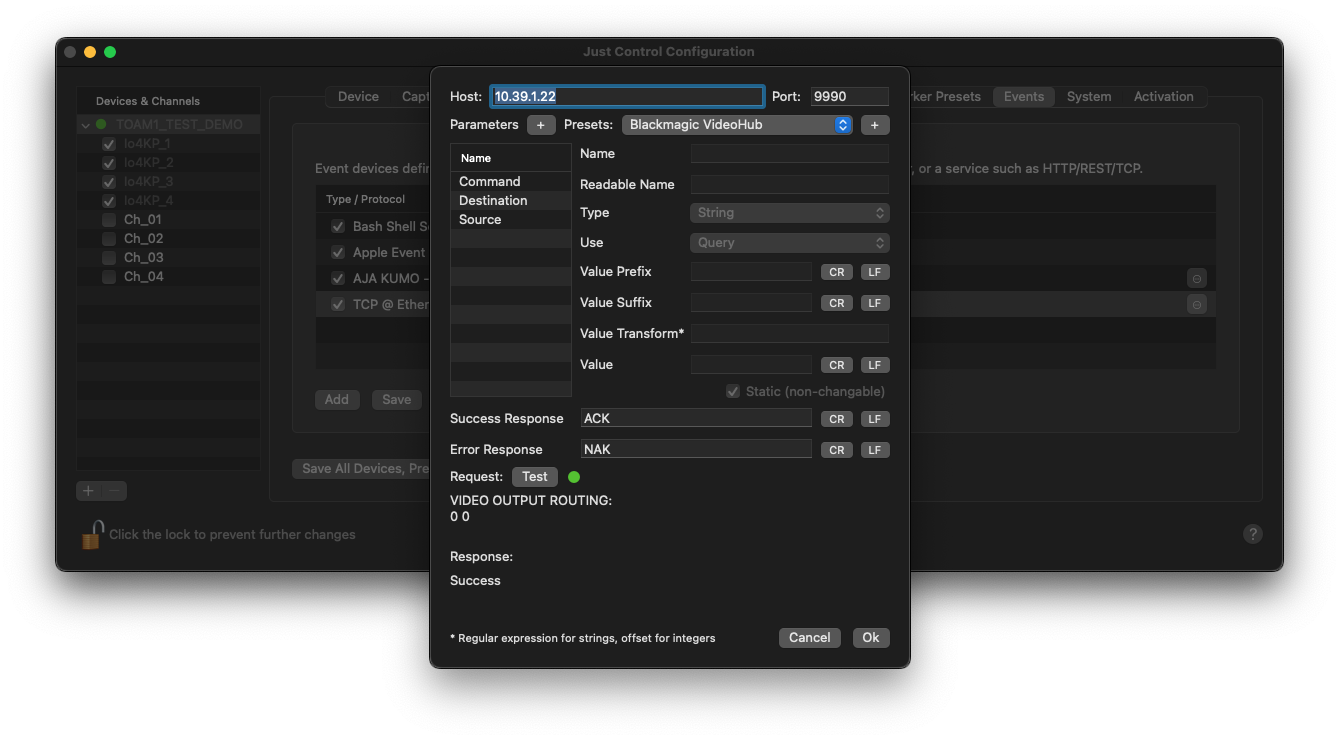
Once the response is positive, the process can be completed by pressing the “Ok” button.
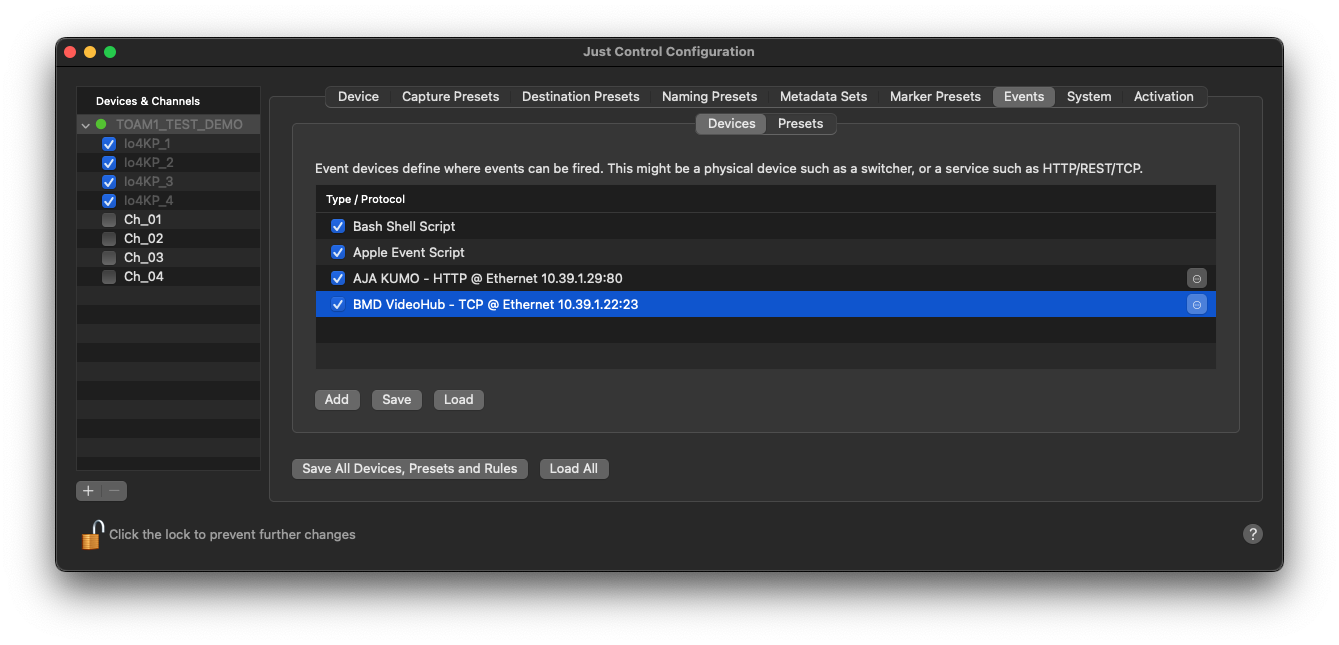
Event Devices can be renamed by double-clicking into the Event Device Name field.
Further configuration will be done within the Recording Event itself. Please see below:
Presets
To create a new Preset, define a name for the Preset, select the Blackmagic Design Videohub Device, and press the “Add” button.
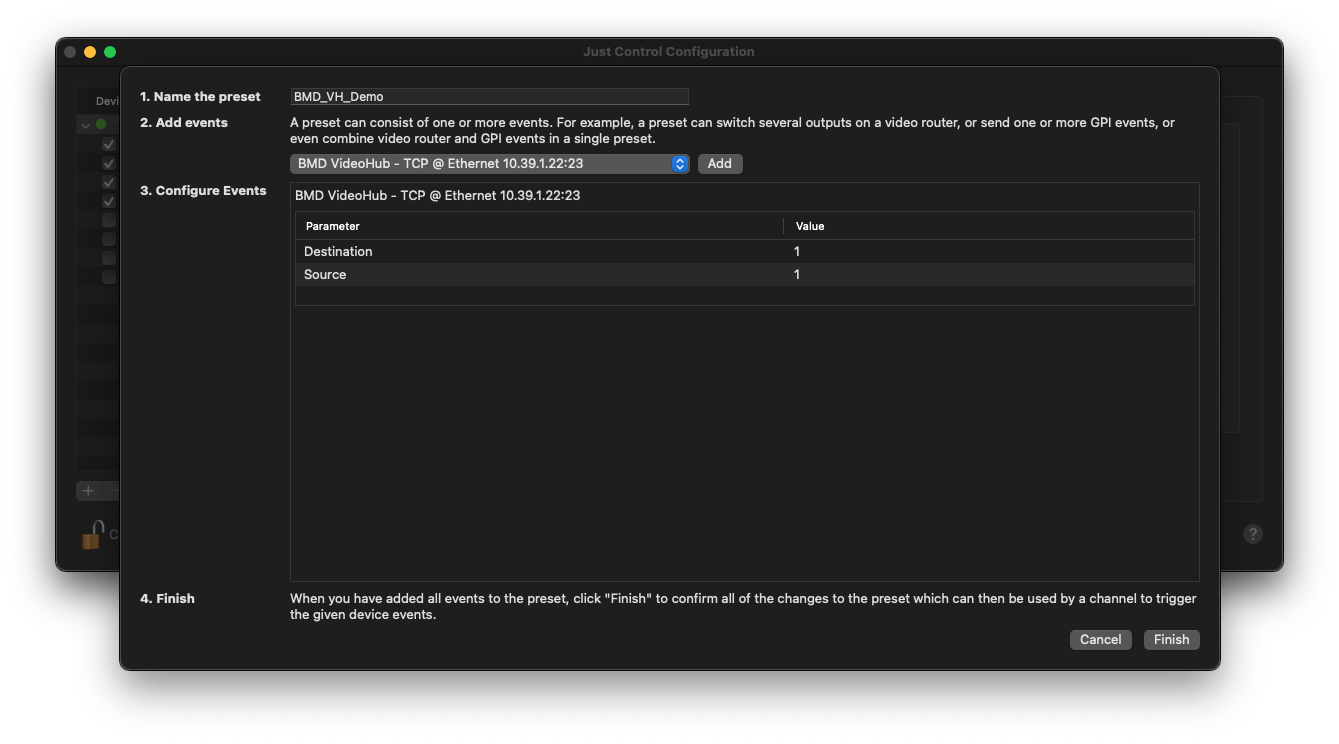
After that step, you can configure the “Destination” and “Source” values. In this example, “Source 1” will be routed to “Destination 1”, once this Event will be triggered. Once done, press the “Finish” button, and the Event will be visible within the Presets list and be available within the Inspector of Just Control as well.