Once the Just In Engine (Mac) application has been properly configured and the Channels have been started, the Diagnostics Window shows the Status of the Channels and other channel details.
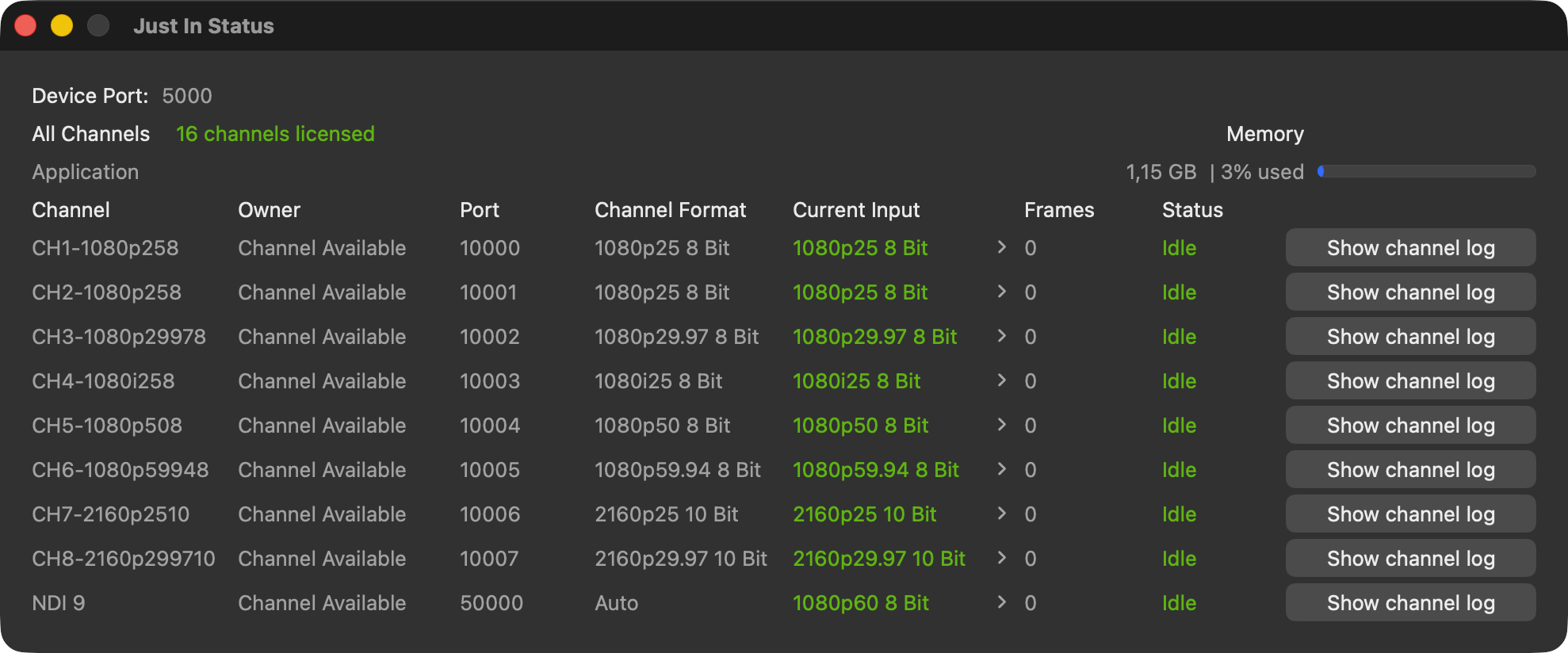
Device Port: The current port for communication between the engine and the user interface (Default Port: 5000).
License State
Memory: displays the amount of the currently used RAM. The color of the usage bar changes according to the amount of RAM used. If it constantly stays red, please review the system requirements and add more RAM to the machine.
Channel: Name of the Channel, as defined in the Configuration Panel.
Owner: shows the name of the Just Control client which is currently connected to the particular Channel. If there is no connection, it states Channel Available.
Port: Port of the Channel, as defined in the Channels Settings.
Channel Format: Video Mode of the Channel. Will be selected automatically when using Auto Mode.
Current Input: displays the current incoming video signal format.
Frames in Buffer: displays how many frames are currently buffered. Values below 50 are normally good, if the value stays above 100 constantly, please review the system requirements and check your configuration.
Status: displays whether the Channel is currently in Idle or Recording Mode.
Show channel log: press the Show Channel Log button to display the log of the corresponding Channel in the Console application of the operating system.
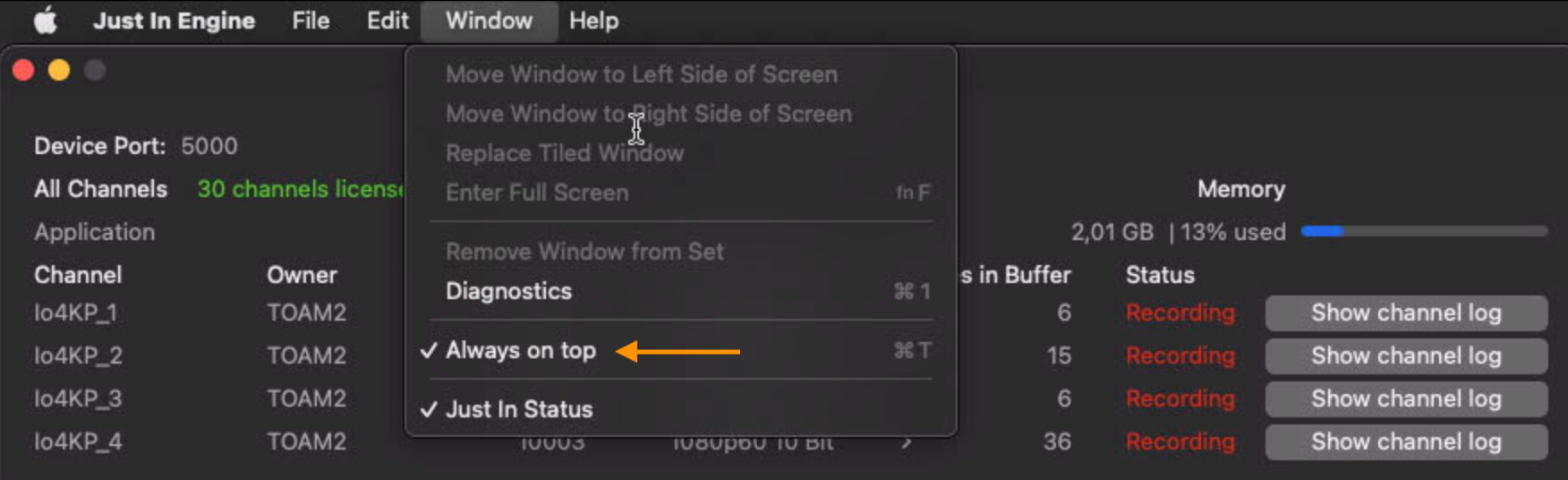
Diagnostics Window always on top
The Diagnostics Window can stay on top of other applications. Select the menu “Window” and enable the “Always on top” feature or use the keyboard shortcut “Command + T”.