
Within the “System” tab, you can perform maintenance tasks, such as saving logs or generating a “TOA System Profile”. Furthermore, and this is an enhanced feature of Just In Engine, dedicated Engine (i.e. Device) Configurations can be saved, enabling a later switch between these Configurations.
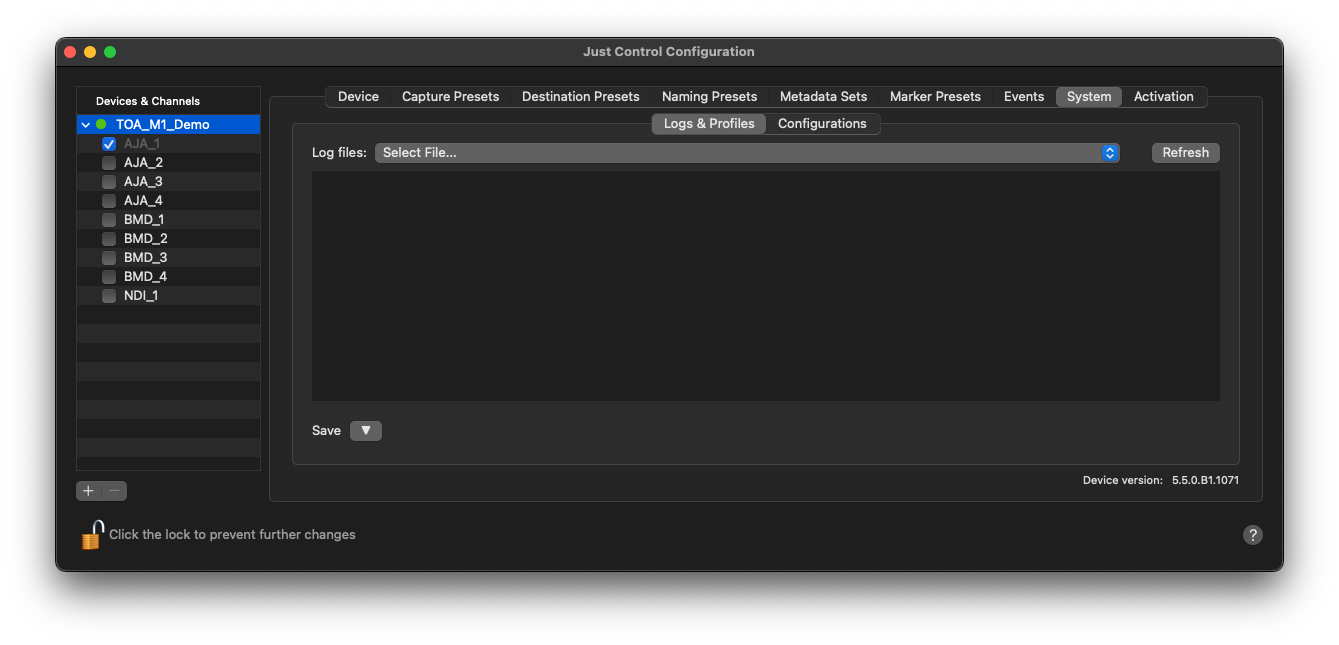
Logs & Profiles
The “System” tab is mainly used for maintenance tasks, such as checking and saving log files (“TOA System Profile”).
To apply any changes, you’ll have to unlock the Just Control Configuration panel first.

Save - Selected Log
Select one of the available log files, which will then be displayed below. Use the “Refresh” button to update the log file list.
Save - All Logs (System Profile)
With this option, you can generate a “TOA System Profile”, which will save all needed log files from the system.
Configurations
In the Just Control Configuration panel, you can save and switch Recording Configurations by clicking on the “Configurations” tab and selecting them accordingly. This facilitates the on-the-fly configuration swapping for distinctive productions or shows and highly increases operational safety.
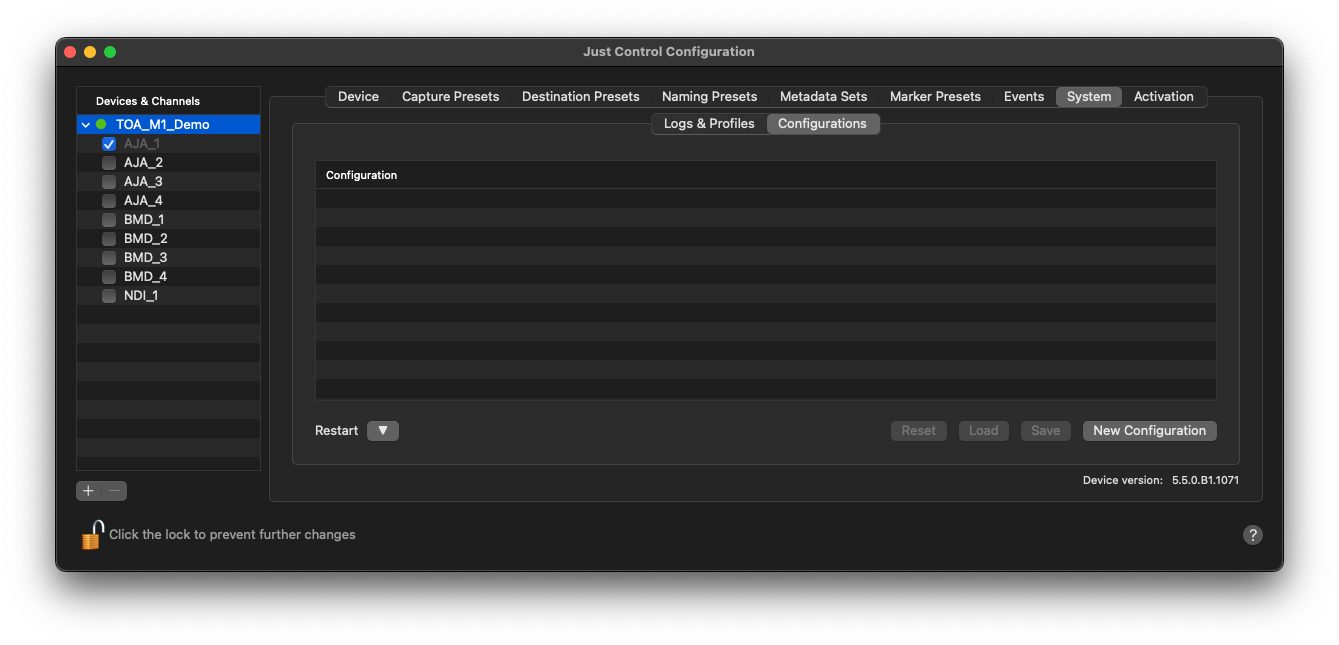
By clicking on the “New Configuration” button, you can create a new Configuration.
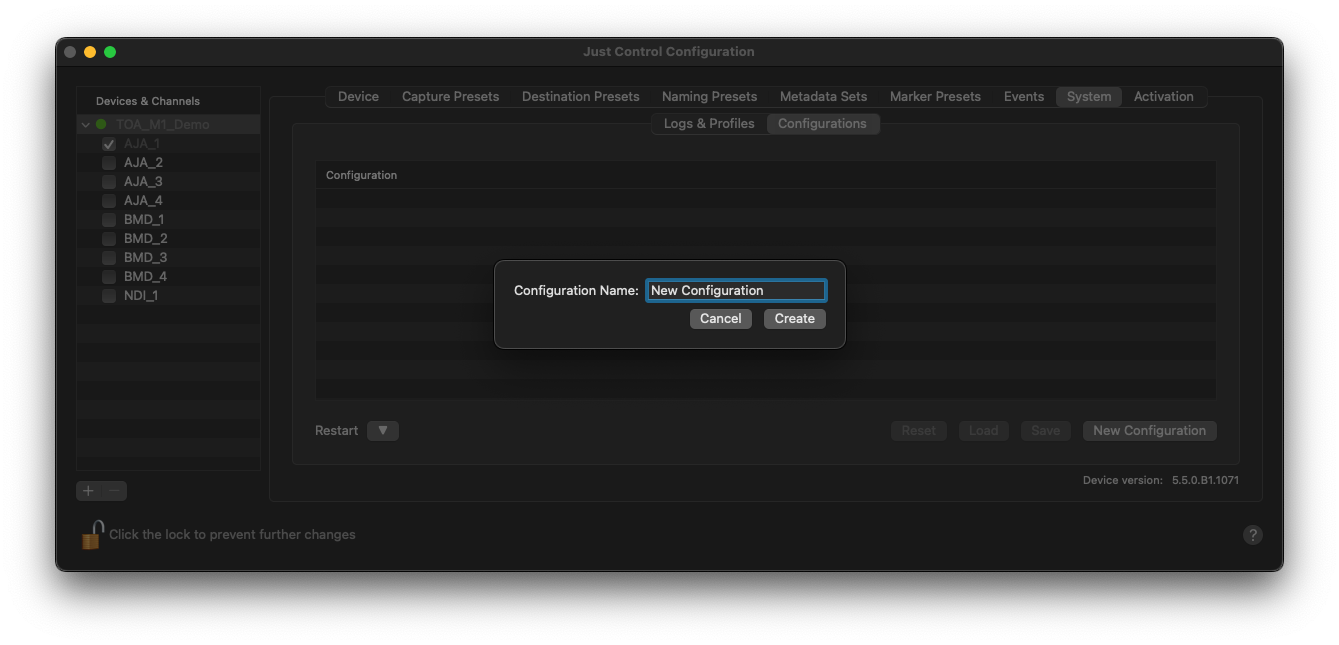
Enter a Configuration Name in the appropriate field and press “Create”.
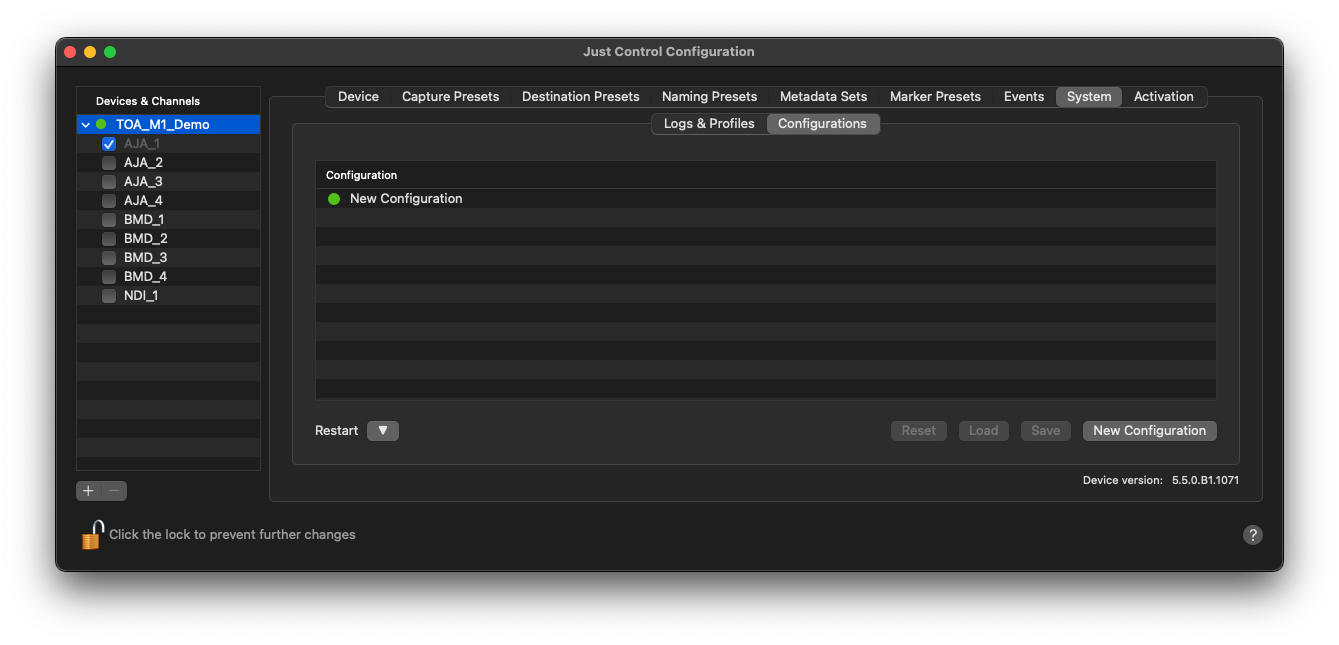
The Green light indicates that this configuration is currently active and all changes, such as Channel settings or Presets, will be saved to this Configuration. By using the “New Configuration” button again, a second Configuration can be created.

The Red light indicates that this configuration is not in use. Before switching configurations, all enabled Channels have to be disabled (unchecked).