
Just In Mac Pro 2026 enhances the online license activation process to ease the deployment and license transfer.
Please note that the Just In Mac Pro 2026 trial version is fully featured. A generated ToolsOnAir watermark will be automatically written to the recorded files at given intervals as long as you are running Just In Mac Pro 2026 in Trial mode. As soon as you purchase a Just In Mac Pro 2026 license, you will receive an activation code to remove the watermark.
To activate your purchased Just In Mac Pro 2026 license with the Activation Code that you have received, please follow the below steps:
First, verify that the Just In Mac Pro Getting Started v.2026.x instructions have been followed, and that you the setup is working accordingly. Then open the “Just Control Configuration” panel by either clicking on the “Channels” menu and selecting “Show Configuration Panel” or clicking on the Cogwheel icon in the Inspector of the Just Control user interface.
 |  |
Then select the Just In Mac Pro 2026 device (in this example “APPLE SILICON”) on the left-hand side and switch to the “Activation” tab.
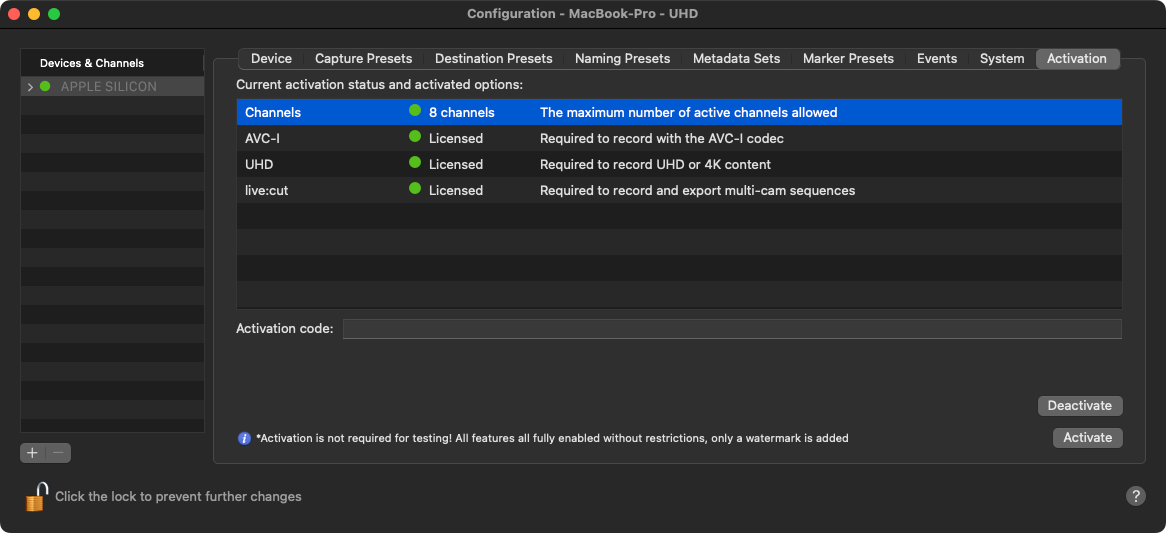
Please enter the License Activation Code that you have received from either your preferred ToolsOnAir reseller or ToolsOnAir into the "Activation code" field and then click on the "Activate" button to activate your license.
Upon successful activation, the status in the “Current activation status and activated option” list changes from “Yellow (🟡)” to “Green (🟢)”.
For the online activation process to work, you will need online access. Please ensure that this is available before starting the online activation process.
License Transfer
Should you need to transfer your license to another machine, then click on the “Deactivate” button. This will release the license for the hardware and allow the license transfer to another machine.
Should the production hardware become defective ahead of a license deactivation, then please contact the ToolsOnAir team at sales@toolsonair.com to help you with the license transfer.